
The llms.txt file is a structured text file providing information for Large Language Models (LLMs), such as ChatGPT, Claude, Perplexity, and others, on how to access and interpret your store’s content. As LLMs are becoming a new type of search engine, these files help them better understand your catalog and increase the chances that your store will be recommended in response to user queries.
Creating llms.txt files
- Open the LLMs.txt: AI Traffic Booster app in your BigCommerce admin.
- Select the storefront for which you want to create the llms.txt files.
- Select the products and collections you want to include in the file. By default, all products, collections, and pages are indexed and added.
- You can optionally add any extra store information you would like to make available to LLMs.
- Click Create LLMs file.
The redirects make the files available at the root of the domain (domain.com/llms.txt), where crawlers expect to find them. No additional action is required.
Where to find your llms.txt files
You can view the files in the top-right corner of the app admin panel:
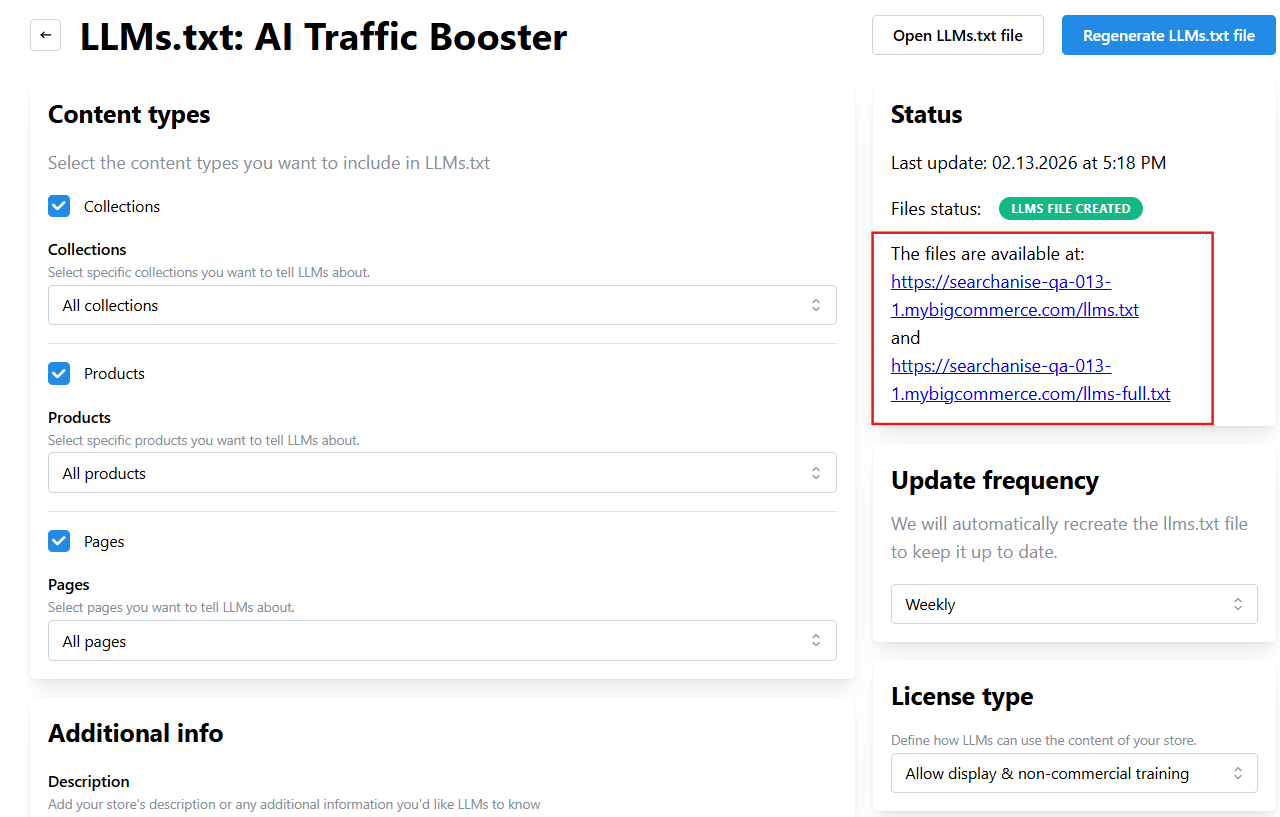
What’s the difference between the files?
The application automatically generates two files at the same time, no additional actions are required:
- llms.txt contains names and URL addresses of products, collections, and pages. It serves as a navigation file for LLMs, listing key sections of the website and pointing to relevant resources.
- llms-full.txt contains extended data, such as product prices and options, collections’ and pages’ descriptions. LLMs use this file to retrieve comprehensive information needed for the model to answer complex user queries or perform detailed analysis.
Update frequency
You can enable automatic generation of LLMs files (limited access) and choose how often they are created:
- weekly
- monthly
- manually – in this case, you need to recreate the files yourself by clicking the Recreate LLMs file button in the app’s admin panel.
License type
Choose how your content can be used by AI systems. Select one of the following options to control display and training permissions:
- Allow full commercial training — allows your content to be used for AI training for commercial purposes and displayed by LLMs in their responses to users.
- Allow display & non-commercial training — allows your content to be used for non-commercial AI training and lets LLMs display your store content in their responses to users. This option is set by default and works well for most stores.
- Allow display, forbid training — allows LLMs to display your store content in their responses to users, but prevents its use for AI training.
- Forbid all AI use — completely forbids any AI use of your content, including training and displaying it in responses.
