
Learn about Recommendation widgets, their types, and available settings in the Using Recommendations guide.
If your store uses themes that support theme app blocks, you’ll see the Theme blocks tab in the Merchandising & Promo > Recommendations section. From there, you can add Recommendation widgets to your theme using app blocks in the Theme Editor.
- Recommendation app blocks can only be added to themes where the app is activated. To check whether the app is active in a theme, go to the Search & Navigation > Preferences section > Themes tab.
- We recommend adding app blocks through the app admin rather than directly in the Theme Editor. This allows you to view all Recommendation widgets and their statuses in one place and quickly navigate to their locations in the Theme Editor.
Add a widget
To add the Products by attribute widget to your theme, follow these instructions.
To add a Recommendation widget of another type to your theme:
- Go to Searchanise Search & Filter control panel > Merchandising & Promo > Recommendations section > Theme blocks tab.
- Click Add in the top-right corner.
- In the installation dialog, select the widget type, theme, and page where you want to place the widget, then click Install.
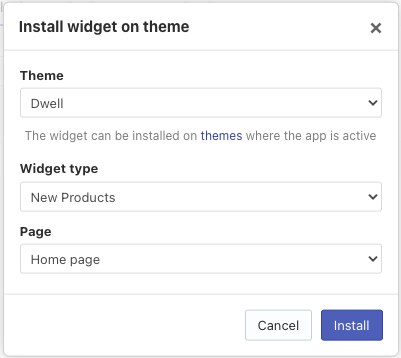
- The Theme Editor will open with the selected app block. Configure the widget settings (click on the selected app block on the left side to see the settings):
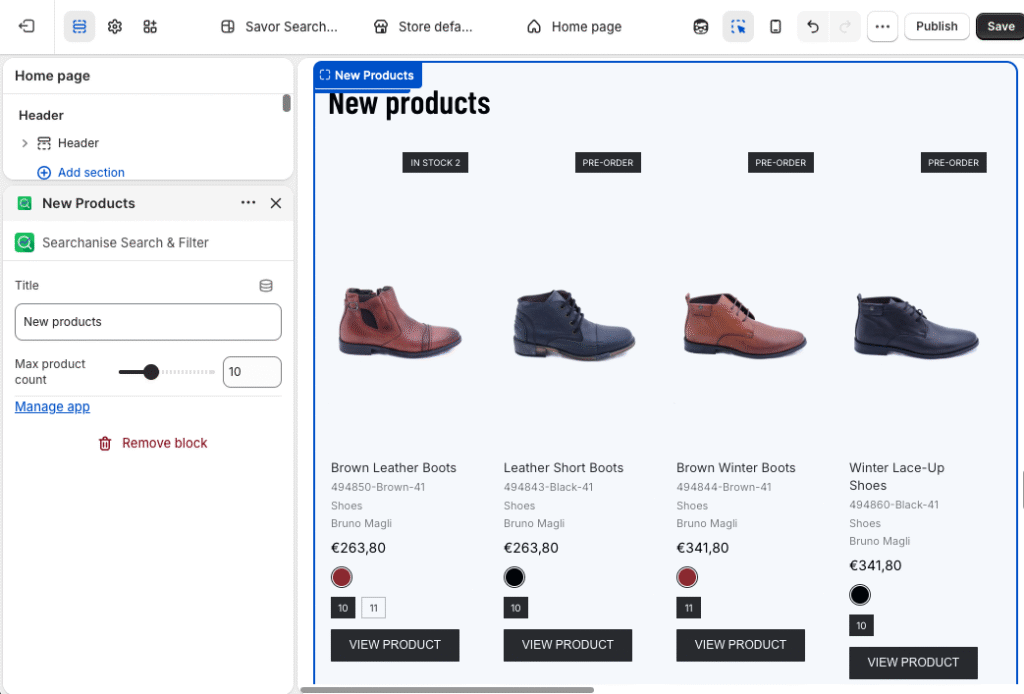
- Optionally, change the Title.
- For Featured Products, select the products to display.
- For Similar Products, choose a value for the Based on setting.
- For Recently Viewed Products, specify how long viewed products should remain visible.
- Optionally, move the block to a different position on the page.
- Click Save in the Theme Editor.
- Return to the apps Recommendations section > Theme blocks tab, and click the Sync block button.
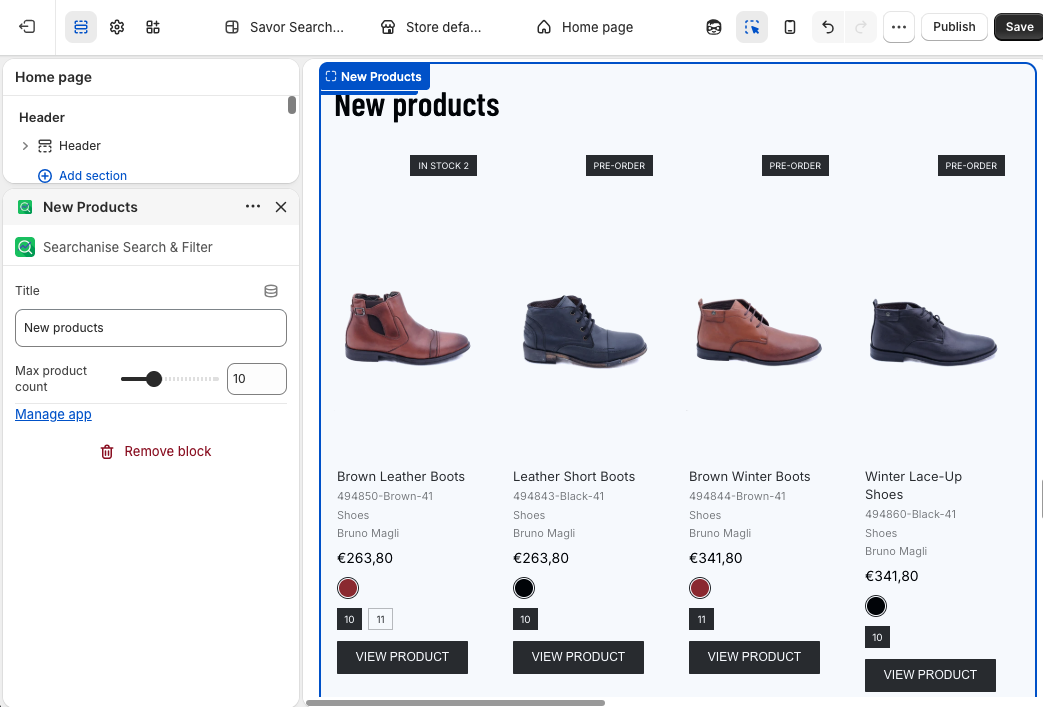
Once the synchronization is complete, the widget will appear in the list with its title and an Active status. The Recommendation widget will also be displayed on the selected page in your storefront theme.
To display the widget in another location, repeat the steps above and select a different page or theme during installation.
Add a Products by attribute widget
To add the Products by attribute widget to your theme:
- Go to Searchanise Search & Filter control panel > Merchandising & Promo > Recommendations section > Theme blocks tab.
- Click Add in the upper-right corner.
-
In the installation dialog:
- Select Products by Attribute as the widget type.
- Select the theme and page where you want to display the widget.
- In the Based on setting, select the product attribute (for example, Vendor or Product type) and the attribute value that will be used to generate recommendations.
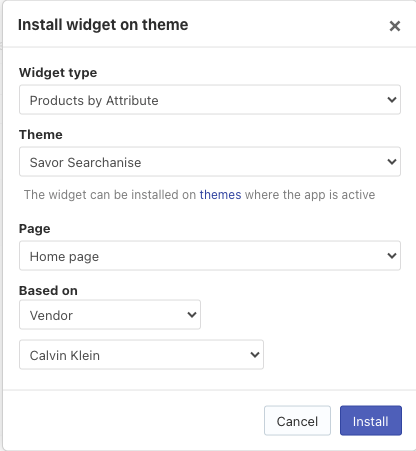
- Click Install.
- Copy the Widget key (ID) displayed in the installation dialog:
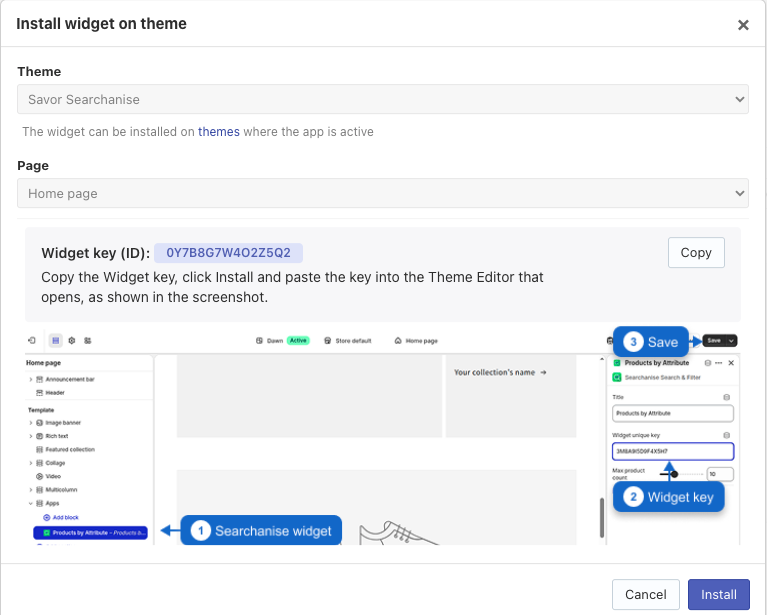
then click Install again. The selected page opens in the Shopify Theme Editor with the Products by Attribute app block selected.
- In the Theme Editor, configure the app block:
- Paste the copied Widget key (ID) into the Widget key field.
- Сhange the Title.
- Optionally, adjust the Maximum product count.
- Optionally, drag the app block to another position on the page.
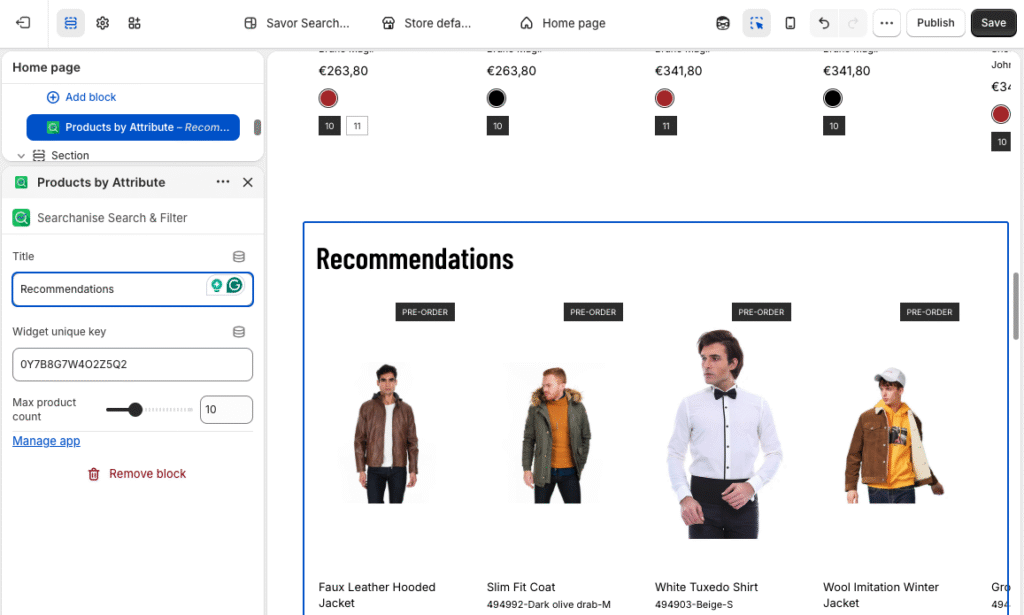
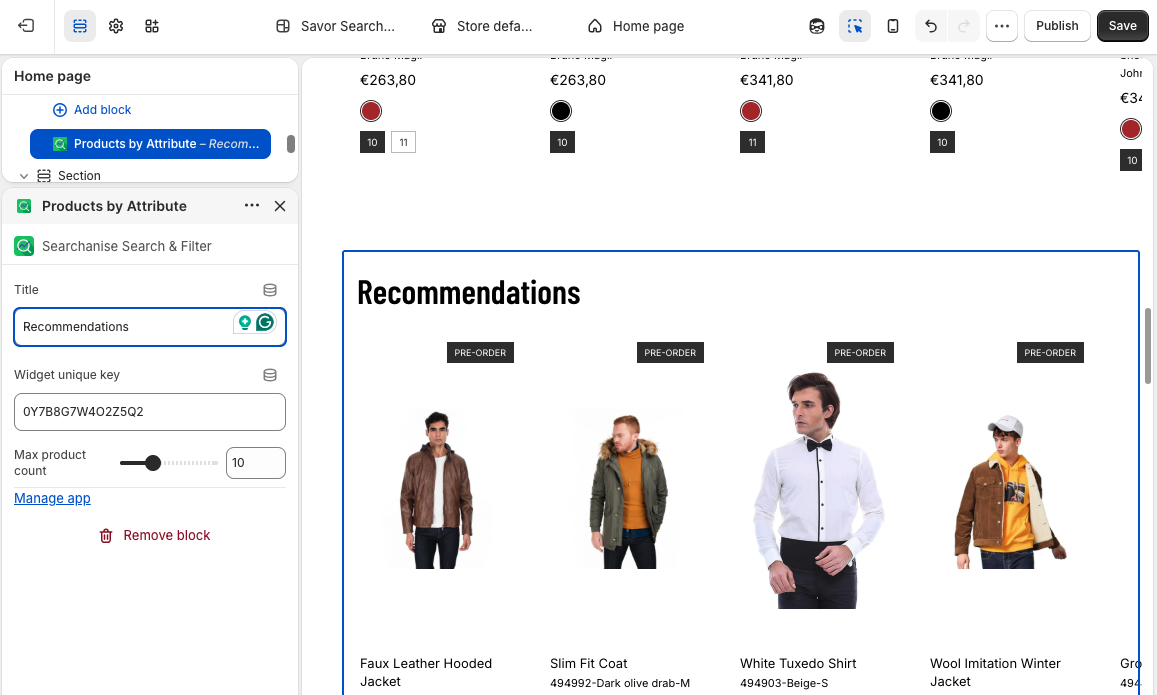
- Click Save in the Theme Editor.
- Return to the apps Recommendations section > Theme blocks tab, then click the Sync block button.
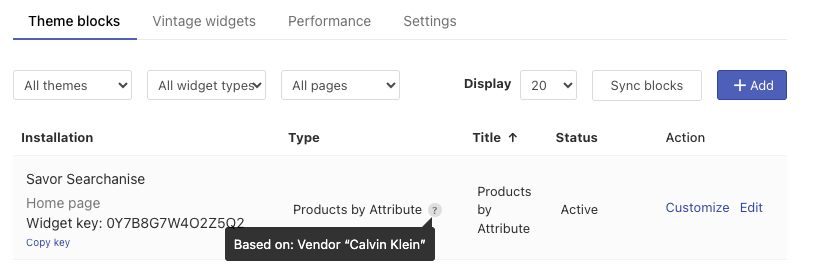
Once the synchronization is complete, the theme block will appear in the list with its title and an Active status. Hover over the Based on tooltip to view the selected attribute and value.
The Recommendation widget will also be displayed on the selected page in your storefront theme. To display the widget in another location, click Edit next to the added theme block. On the Edit Products by Attribute page, you’ll see all theme blocks currently connected to the Products by Attribute widget for the selected attribute and value. In the Theme blocks table, click Add to install the widget on another theme or page.
Alternatively, repeat the steps above and select a different theme or page during installation.
Edit a Products by attribute widget
To change which products the widget recommends:
- Go to Searchanise Search & Filter control panel > Merchandising & Promo > Recommendations section > Theme blocks tab.
- In the Theme blocks list, find the Products by Attribute widget with the Based on settings you want to change, then click Edit.
- Update the Based on settings.
- Click Save.
The storefront widget is updated automatically after the changes are saved.
The Edit page also shows all theme blocks connected to the widget with the selected Based on settings. From there, you can install the widget on another theme or page, or customize an existing block by opening it in the Shopify Theme Editor.
Install the widget in another theme or page
- Click Add.
- In the installation dialog:
- Select the theme and page where you want to display the widget.
- Copy the Widget key (ID).
- Click Install. The selected page opens in the Shopify Theme Editor with the Products by Attribute app block selected.
- In the Theme Editor, configure the app block:
- Paste the copied Widget key (ID) into the Widget key field.
- Optionally, change the Title and adjust the Maximum product count.
- Optionally, drag the app block to another position on the page.
- Click Save in the Theme Editor.
- Return to the Searchanise app, then click Sync block.
Once the synchronization is complete, the new theme block will appear in the list with its title and an Active status.
Widget statuses
You can view the status of each Recommendation widget in the Theme blocks tab. The status is synchronized with the corresponding app block in your theme.
- Active — the app block is installed and visible.
- Hidden — the app block is installed but hidden.
- Missing — the app block isn’t installed.
Hide a widget
To hide a Recommendation widget:
- Go to Searchanise Search & Filter control panel > Merchandising & Promo > Recommendations section > Theme blocks tab.
- Click Customize next to the block.
- The Theme Editor will open with the corresponding app block.
- Hide the app block in the Theme Editor and save your changes.
- Return to the apps Recommendations section > Theme blocks tab, and click the Sync block button.
The widget’s status in the admin panel will change to Hidden, and it will no longer be displayed to shoppers.
Activate a widget
To activate the hidden Recommendation widget:
- Go to Searchanise Search & Filter control panel > Merchandising & Promo > Recommendations section > Theme blocks tab.
- Click Customize next to the block.
- The Theme Editor will open with the corresponding app block.
- Activate the app block in the Theme Editor and save your changes.
- Return to the apps Recommendations section > Theme blocks tab, and click the Sync block button.
The widget’s status in the admin panel will change to Active, and it will be displayed to shoppers.
Edit a widget in Theme Editor
To edit a Recommendation widget:
- Go to Searchanise Search & Filter control panel > Merchandising & Promo > Recommendations section > Theme blocks tab.
- Click Customize next to the block.
- The Theme Editor will open with the corresponding app block.
- Update the app block settings as needed.
- Save your changes in the Theme Editor.
- Return to the apps Recommendations section > Theme blocks tab, and click the Sync block button.
Delete a widget
To delete a Recommendation widget:
- Go to Searchanise Search & Filter control panel > Merchandising & Promo > Recommendations section > Theme blocks tab.
- Click Customize next to the block.
- The Theme Editor will open with the corresponding app block.
- Remove the app block and save your changes.
- Return to the Theme blocks tab, and click the Sync block button. The widget status will change to Missing.
- Click Delete next to the block and confirm the action.
The widget will be removed from both your theme and the Searchanise admin panel.
Sync recommendation blocks from your Shopify theme
If you add a Recommendation app block directly in the Shopify Theme Editor, it may not yet appear in the Searchanise admin panel.
Searchanise automatically detects Recommendation app blocks in your store themes that aren’t tracked in the admin panel. When such blocks are found, a notification appears on the Theme blocks tab. To add the detected blocks to the Searchanise admin panel, click Sync blocks in the notification.
Searchanise creates the corresponding recommendation widgets and preserves their current settings, such as Status and Title.
After synchronization, the notification disappears, and you can manage the synced recommendation widgets from the Searchanise admin panel.
