
Learn about Recommendation widgets, their types, and available settings in the Using Recommendations guide.
If you want to add a Recommendation Widget to a theme that does not support app blocks, go to the Merchandising & Promo > Recommendations section > Vintage widgets tab.
From there, you can add Recommendation widgets:
- Automatically to supported pages across all themes where the app is active:
- Home page
- Collection pages
- Product pages
- Search Results page
- Cart page
- Manually add the widget to any page by adding it through the Theme Code Editor.
Add a widget
To add a widget to your store, follow these steps:
- Go to the Searchanise Search & Filter control panel > Merchandising & Promo > Recommendations section > Vintage widgets tab.
- Click the Add button in the top-right corner. The adding page will be opened.
- Choose the type of widget.
- For the Featured Products type, add products that will be displayed in the widget.
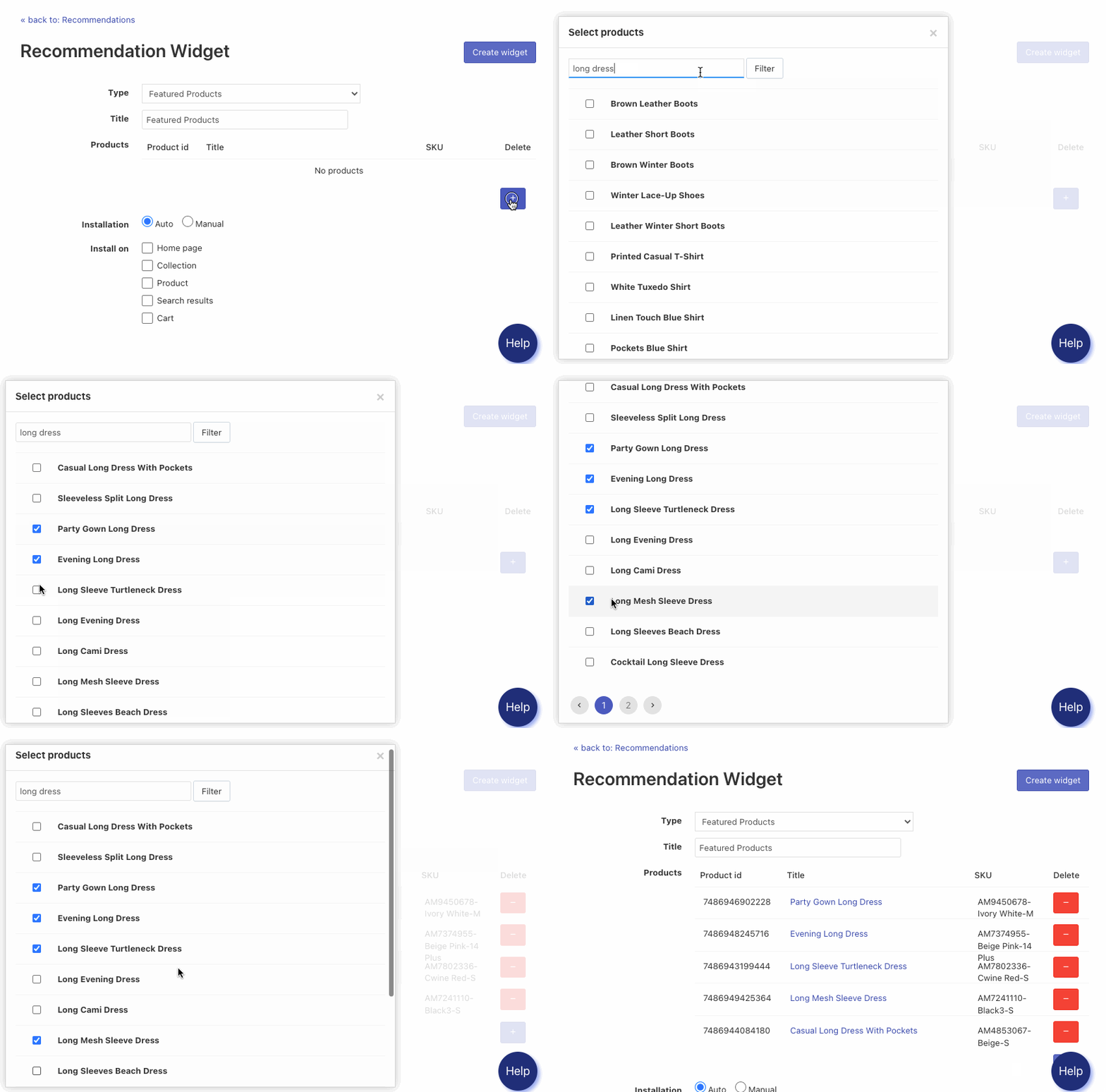
- For the Similar Products type, select an option in the Based on setting based on the products will be displayed.
- For the Products by Attribute type, select a product detail and its value in the Based on setting based on which the products will be displayed.
- For the Recently Viewed Products, select how long viewed products remain visible in the widget.
- For the Featured Products type, add products that will be displayed in the widget.
- Optionally, change the Title.
- Choose the installation variant: automatic or manual.
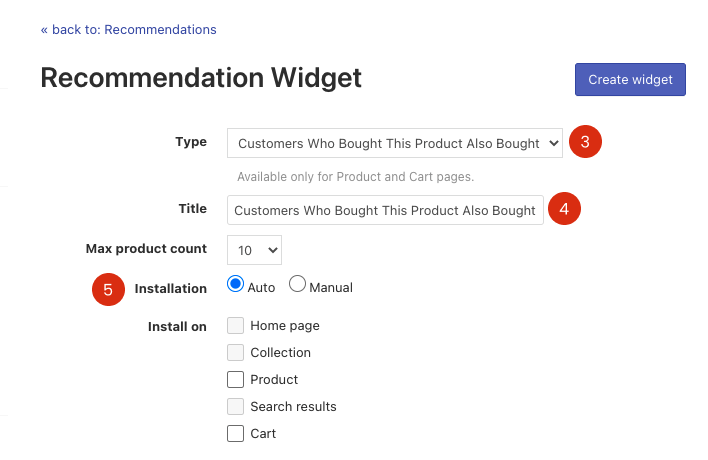
Adding automatically
- Choose the Auto option.
- Choose pages where you want to show the widget in the Install on setting.
- Click the Create widget button at the top.
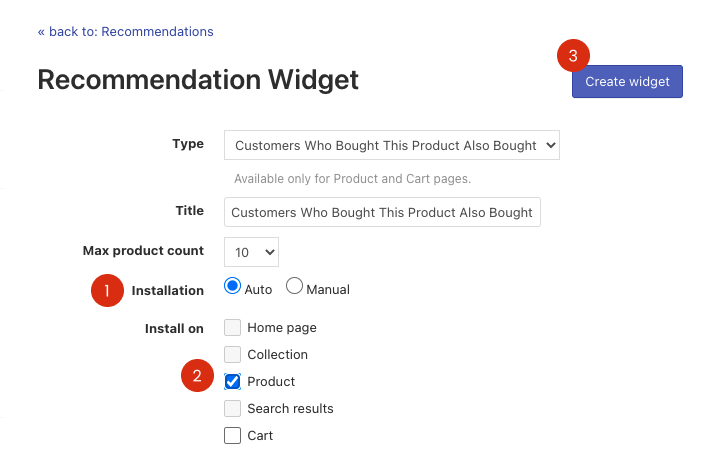
That’s it. Your new widget has been created. You can now check out how it looks on the pages you selected.
Adding manually
- Choose the Manual option.
- Click the Create widget button in the top-right corner.
Your new widget has been created. As a result, you will see the code that you can insert into your theme template:
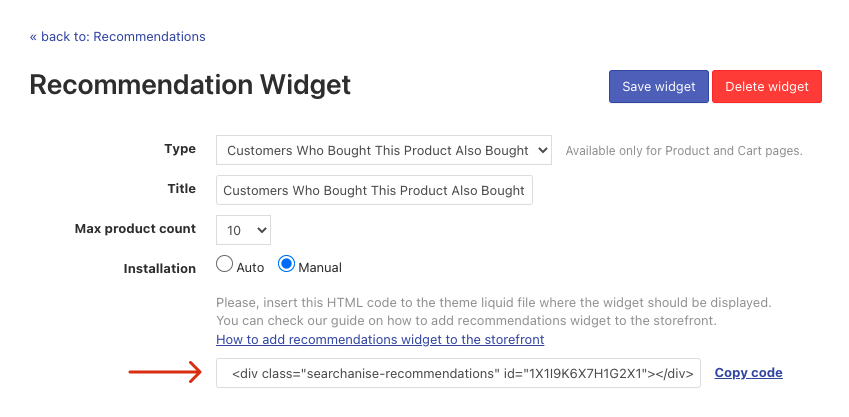
Next, follow these instructions to add recommendation widgets manually to your theme files.
Hide/Show a widget
To hide or show a widget, follow these steps:
- Go to the Searchanise Search & Filter control panel > Merchandising & Promo > Recommendations section > Vintage widgets tab.
- Click the Edit recommendations button in the top-right corner.
- Change the widget’s status from Active to Hidden or vice versa.
- Click the Save changes button.
Edit a widget
To edit a widget, follow these steps:
- Go to the Searchanise Search & Filter control panel > Merchandising & Promo > Recommendations section > Vintage widgets tab.
- Click the Edit link next to the widget you want to change. The editing page will be opened.
- Change the options.
- Click the Save widget button.
Delete a widget
To delete a widget, follow these steps:
- Go to the Searchanise Search & Filter control panel > Merchandising & Promo > Recommendations section > Vintage widgets tab.
- Click the Edit link next to the widget you want to delete. The editing page will be opened.
- Click the Delete widget button and confirm the deletion.
