
Introduction
Important info
If your store uses a cookie consent banner and a visitor declines marketing cookies, Recommendations widgets will not work for that visitor.
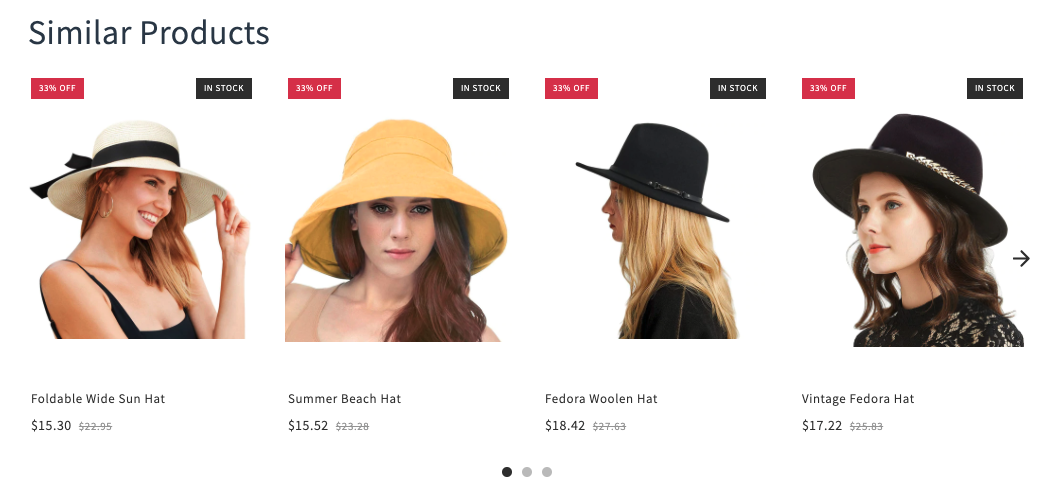
- Using the Vintage widgets if your theme does not support app blocks.
- Using the Theme blocks if your theme supports app blocks.
Types of Recommendation Widget
| Type | Description | Pages for placing |
|---|---|---|
| New Products | Includes recently added products. | Any page |
| Featured Products | Includes products selected manually. | Any page |
| Similar Products | Includes products that are similar by one of the options: product type, product options (size and color), tag, vendor, or collections. Your customers will see products similar to the product they are viewing at the moment. | Product page |
| Most Popular Products | Includes the all-time bestselling products of your online store. | Any page |
| Products by Attribute | Includes random products of a selected product type, vendor, or collection, or random products with a specified tag. | Any page |
| Customers Who Bought This Product Also Bought | Recommends products other customers bought together with the viewed product within the same purchase. If the currently viewed product has not been purchased together with other products, this widget will not be shown for it. | Product page Cart page |
| Recently Viewed Products | Displays products the user recently viewed. | Any page |
Recommendation Widget’s settings
Recommendation Widgets have settings that you can manage in the Settings tab.| Setting | Description |
|---|---|
| CTA placement | Adjust the placement and appearance of CTA buttons on product cards. These settings work the same way as in the Search Results widget. See detailed instructions here. |
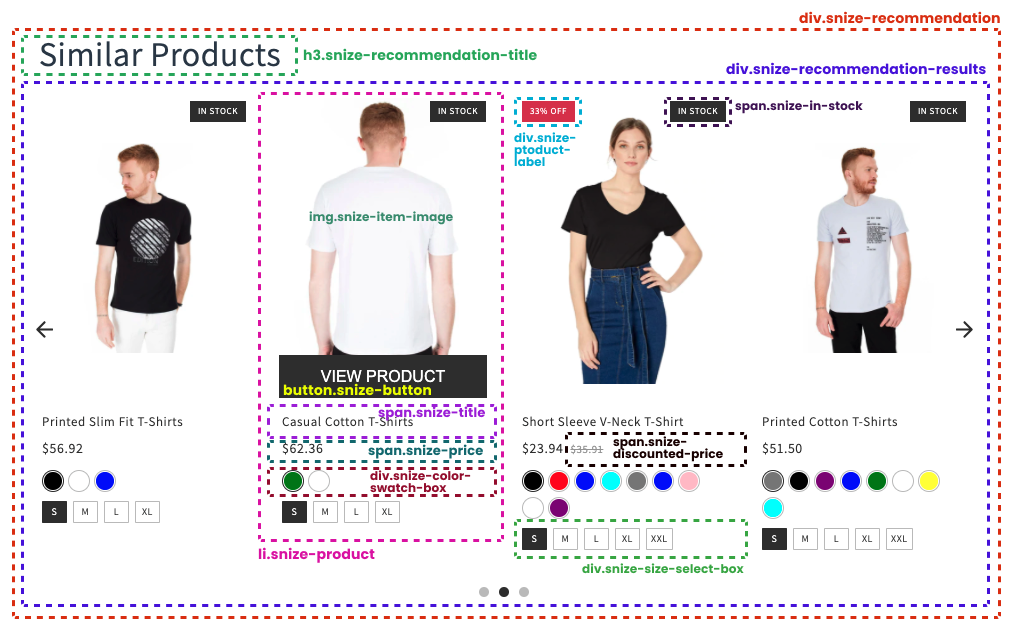
| Display option swatches | The Recommendation Widgets will show size and color variations if you select this option. You should specify all colors in Color families if you want to display them. |
| Color option view | It is shown only if the Display option swatches setting is enabled. It has 2 options:
|
| Color (Image) swatch shape | It is shown only if the Display option swatches setting is enabled. Changes the shape of the color swatches. It has 2 options:
|
| Size swatch shape | It is shown only if the Display option swatches setting is enabled. Changes the shape of the size swatches. It has 2 options:
|
| Default product image | It is shown only if the Display option swatches setting is enabled. It has 2 variations:
|
| Use custom CSS | This option allows you to write your own CSS rules for the Recommendation Widget, which will change its appearance. |
Widget’s analytics
To understand how the recommendation widgets added to your store affect your store’s conversion, analyze the data in the Searchanise Search & Filter control panel > Merchandising & Promo > Recommendations section > Performance tab. The analytics data shows a sales funnel for all your recommendation widgets and detailed information about each one:- Impressions – the number of displays to customers
- Clicks – the number of product clicks in the widgets
- Add to cart – the number of products added to the cart from the widgets (including product clicks into adding them to the cart)
- Item ordered – the number of products added to the cart from the widgets that got into the checkout
- Revenue – the total cost of the ordered products (the app doesn’t consider refunds and discount codes)
