
This feature is available on Growth plans and above, excluding Legacy plans introduced before December 2022.
Variants displayed as individual items do not count toward your plan limits.
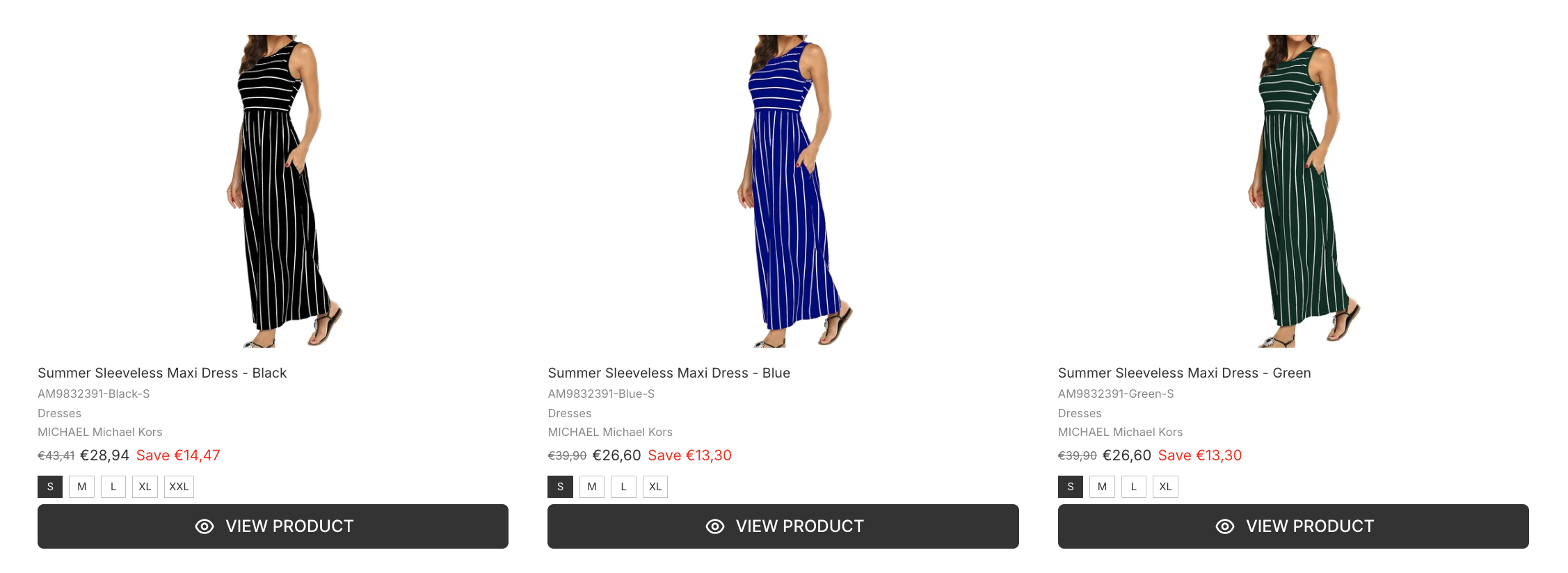
Show product variants as individual items in Searchanise search widgets and on collection pages. For example, if you separate variants by Color, shoppers can see Summer Dress – Blue and Summer Dress – Green as separate items. If you separate by Color and Size, each displayed item represents a combination, such as Summer Dress – Blue – Medium.
Here’s an example of how a product with different colors appears as separate items when the Show product variants as separate products setting is enabled.
Enable the feature
Searchanise Search & Filter is gradually rolling out a new control panel to Shopify stores. During the rollout, some Shopify stores may still use the previous version. If switching is available for your store, you can try the new control panel and return to the previous version at any time. Learn how to identify your control panel version.
Previous admin
- Go to Search & Navigation > Preferences > Products.
- Turn on Show product variants as separate products.
- In Separate variants by, enter one or two product option names, separated by a comma.
NoteIf you need to separate by more than two options, contact our support team and we will be happy to assist you.
- Select where you want to display variants as individual items.
 Important info
Since the Instant Search Widget is optimized for quick and relevant results, showing all separated products may clutter the search results, making it harder for users to find what they need.
- Apply the changes. Review the merchandising warning, then confirm your changes.
- Click the link in the notice at the top to start indexation.
New admin
- Go to Search & Navigation > Preferences > Products.
- In the Search section, turn on Show product variants as separated products.
- In Separate variants by, enter a product option name, such as
Color, then click Add or press Enter. To add a second option, such asSize, repeat this step. - Under Separate variants modes, select where to show individual variants. You can select more than one.
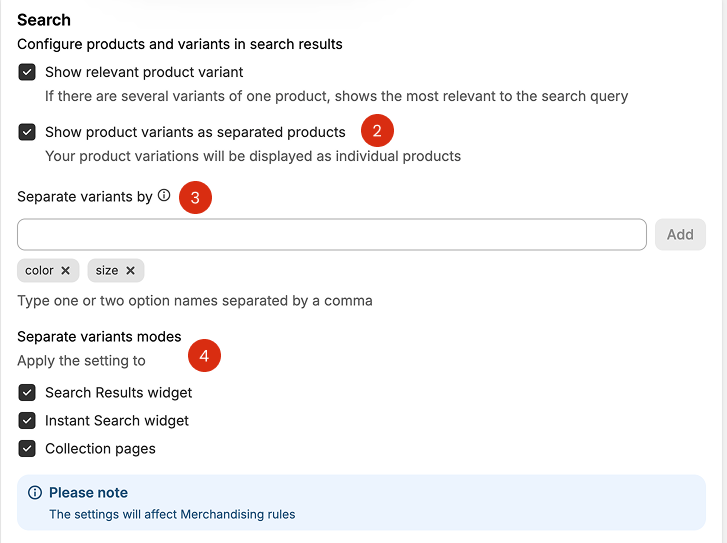
- Click Save.
- Click the link in the notice at the top to start indexation.
That’s it. After the indexation is complete, the feature will be enabled in the selected app’s widgets.
How variants appear
- Title — the product name followed by the selected option values, such as Summer Dress – Blue – Medium.
- Price — the price of the displayed variant.
- Image — the variant’s image, when available. Otherwise, Searchanise uses the default product image.
- Option swatches and selectors – when shoppers can select options on a product card, the card shows only the options that aren’t used to split the variants. For example, if a dress comes in different colors and sizes and you split its variants by color, each color has its own card, and shoppers can still select a size on that card.
Product links
In the Instant Search Widget, Search Results Widget, and Filters on collections, clicking a product link on a card for a variant displayed separately opens the product page with that variant selected. For example, a variant link can look like /products/fancy-dress?variant=123456789. If the variant ID is missing or invalid, the card links to the product page without selecting a variant through the URL.
Impact on related features
Merchandising by products
Enabling or disabling the Show product variants as separate products setting can affect the Merchandising feature. It’s essential to be aware of these impacts before adjusting your settings.
Warning: If the Show product variants as separate products setting is enabled only in the Instant Search Widget or only in the Search Results Widget, but merchandising rules are set, product variants will still appear as separate products in both widgets with the applied merchandising rules. Currently, merchandising rules cannot be configured separately for different widgets.
Case 1: Selecting product variants when adding/editing a Merchandising rule
You can select product variants for merchandising rules if you’ve enabled the Show product variants as separate products setting for the Search Results Widget or the Instant Search Widget.
Case 2: Enabling the Separate variants by setting after creating merchandising rules with parent products
The products selected for merchandising rules will be replaced with their product variants with the same ranking option. For example, if you’ve added a merchandising rule to always display the product Summer Dress at the top of the search result, but later enable the Show product variants as separate products setting, the merchandising rule for the product Summer Dress will be replaced with its variants: Summer Dress – Blue, Summer dress- Green, Summer Dress – White, etc.
To guarantee that the merchandising rules are applied to the right products, you should manually edit and reselect the product variants.
Case 3: Disabling the Separate variants by setting after creating merchandising rules with product variants
The product variants selected for merchandising rules will be replaced by their parent product, retaining the ranking option of the first merchandising rule created. For example, if you’ve added merchandising rules
- to always display the product variant Summer Dress – Blue at the top of the search result (the ranking option = always),
- to display the product variant Summer Dress – Green at the top of the list if it’s included in the search results (the ranking option = on match),
but later disable the Show product variants as separate products setting; the variants Summer Dress – Blue and Summer Dress – Green will be replaced by their parent product, Summer Dress, with the ranking option = always.
