
This article is general for Shopify, BigCommerce, Wix, WooCommerce, Magento 1, Magento 2, and CS-Cart.
The Synonyms functionality helps customers find the same products using different search queries.
What is a synonym?
A synonym is a word or phrase that means exactly or nearly the same as another word or phrase in the same language.
How to use synonyms?
Similar words or phrases
Your customers may use different words or phrases to describe the same products. You can associate these alternative queries with one primary search term.
For example:
Synonyms: trousers, slacks, chinos
Search term: pants
In this case, products containing pants or any of the configured synonyms as complete words or phrases can normally be found when customers search for these terms.
If some products contain trousers and others contain pants, both groups can normally appear in the results for either query.
Plurals
Searchanise may automatically recognize some singular and plural forms through language processing. If a particular form does not return the expected products, you can create an explicit synonym rule.
For example:
Synonyms: chocolates
Search term: chocolate
 | Explore the tips and hacks on using synonyms and why they are so important for ecommerce search. |
Search limitations
Synonyms are processed as part of search text analysis rather than as a simple replacement of the text entered in the search box. Because of this, results for different terms in a synonym rule are not guaranteed to be identical.
- Choose a Search term that returns the expected products as a complete word or phrase.
- A value that matches only as part of a longer word may behave differently because substring matching is processed separately.
- Multi-word synonyms are processed as complete phrases. Their individual words do not automatically become separate synonyms.
- Common words such as
a,an,and,of,the, andtomay be ignored during text processing and can affect phrase matching. - If possible, avoid relying on stop words to distinguish one synonym phrase from another.
- Multi-word synonym rules are processed before single-word rules. A single-word rule may also be applied to a term produced by a multi-word rule. Because of this, combining overlapping single-word and multi-word rules may produce unexpected search results.
Synonyms affect search matching. They may not be applied to suggestions, redirects, search-term highlighting, or relevant product variant selection.
Manage synonyms
Add synonyms
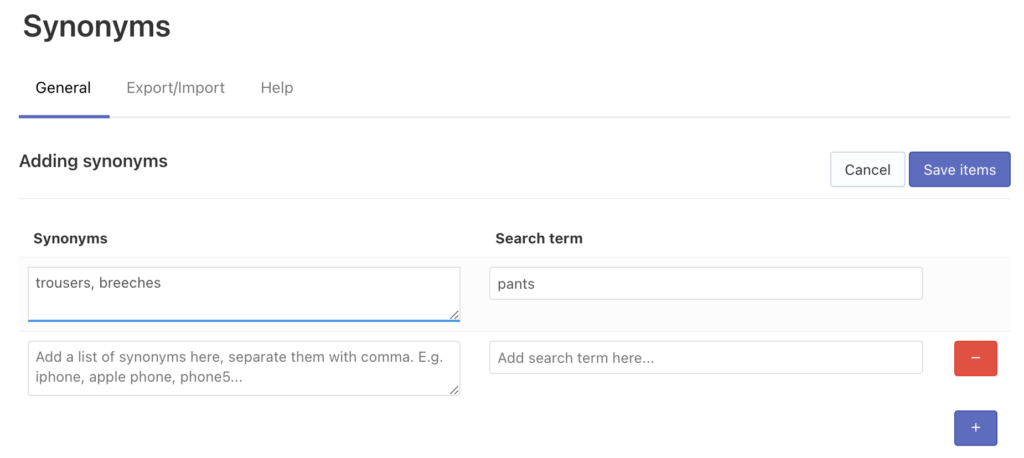
- Go to the Searchanise Search & Filter control panel > Search & Navigation > Synonyms section.
- Click the + button on the top right.
- In the Synonyms field, enter the alternative words or phrases that customers may search for. To add multiple values, separate them with commas.
- In the Search term field, enter one primary word or phrase associated with these synonyms. Add only one search term to each rule.
 Important info
Follow these requirements when creating or editing synonyms:
- Both Synonyms and Search term are required.
- Enter only one word or phrase in the Search term field. A comma-separated list of search terms is not supported.
- Separate multiple values in the Synonyms field with commas.
- Each word or phrase must be unique across all synonym rules.
- Do not use the same value in the Synonyms and Search term fields.
- Do not use a search term from one rule as a synonym in another rule. Chained or overlapping synonym rules are not supported.
- Do not add duplicate synonyms, including values that differ only in letter case.
- Do not use double spaces, line breaks, or the following character sequences:
#,..,->,=>,>,+, and~.
- Save the changes.
- Start the re-indexing by clicking the link in the top notice.
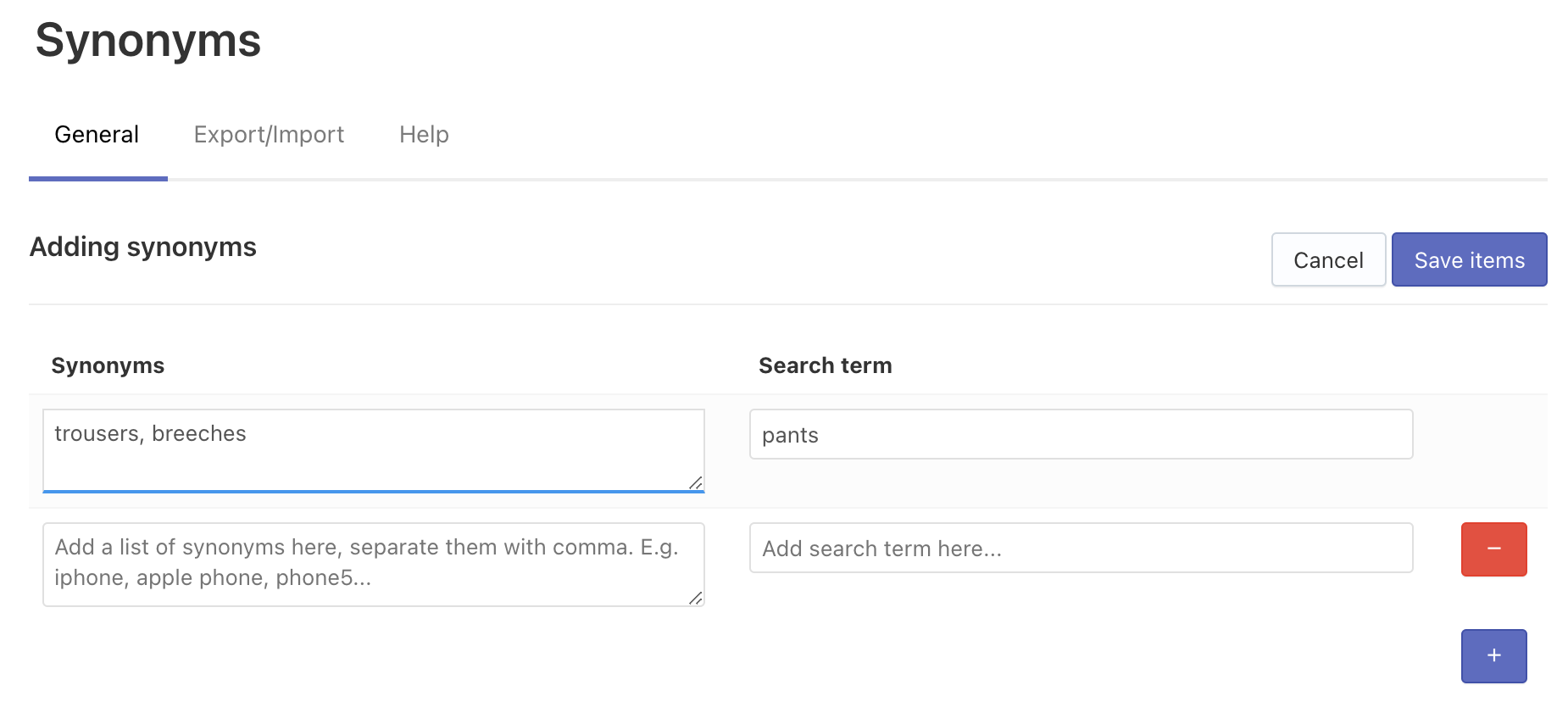
That’s it. After the indexing is complete, you can go to the storefront and test how the synonyms work.
Edit synonyms
- Go to the Searchanise Search & Filter control panel > Search & Navigation > Synonyms section.
- Click the Edit synonyms button at the top.
- Edit the items.
- Save the changes.
- Start the re-indexation by clicking the link in the top notice.
Delete synonyms
- Go to the Searchanise Search & Filter control panel > Search & Navigation > Synonyms section.
- Select the synonyms you want to delete.
- Click the Delete selected (…) button.
- Confirm deletion.
- Start the re-indexation by clicking the link in the top notice.
Export synonyms
To export synonyms, follow these steps:
- Go to the Searchanise Search & Filter control panel > Search & Navigation > Synonyms section > Export/Import tab > Export part.
- Click the Download as CSV button.
- Choose the directory to save the exported file.
That’s it. The CSV file is exported.
Import synonyms
To import synonyms, follow these steps:
The file must contain the header fields: Synonyms, Search term.
The CSV file size is limited by the server settings. At the moment the maximum file size is 2 MB.
You can use our sample CSV template.
- Go to the Searchanise Search & Filter control panel > Search & Navigation > Synonyms section > Export/Import tab > Import part.
- Select the CSV Delimiter that is used in the imported CSV file.
- Click the Choose file button and choose the file for importing.
- Click the Import button. You can see the imported values in the General tab.
- Start the re-indexing by clicking the link in the top notice.
That’s it. After the indexing is complete, you can go to the storefront and test how the synonyms work.
If you imported the wrong data, you can clean it up.
You can export synonyms first to get the file containing the correct header fields and fill it out for importing.
Clean up all synonyms
- Go to the Searchanise Search & Filter control panel > Search & Navigation > Synonyms section.
- Select the Select all checkbox in the header of the table.
- Click the Clean up button.
- Confirm the action.
- Start the re-indexing by clicking the link in the top notice.
That’s it. After the indexing is complete, all synonyms will be deleted and won’t affect the search.
We’d appreciate it if you could take some time to leave a review. To do so, follow the link to your respective platform below:
