
Google can show star ratings next to your products in Google Shopping listings and ads. To do this, Google needs a reviews feed connected in Google Merchant Center. Searchanise Product Reviews creates this feed for you and updates it automatically once a day.
Note: This is separate from review stars in regular Google search results, which work without Merchant Center. See Showing review stars in Google search results.
Google requirements
- A Google Merchant Center account with your products.
- Approval for the Google Product Ratings program. It usually takes a few weeks.
- At least 50 reviews. With fewer reviews, Google doesn’t show ratings in Shopping.
- The same store domain in Merchant Center and in your feed.
- A store that’s open to the public, not password-protected.
- All your reviews in the feed, including low ratings. Google may block feeds with only positive reviews.
Setting up the feed
Step 1. Turn on the feed
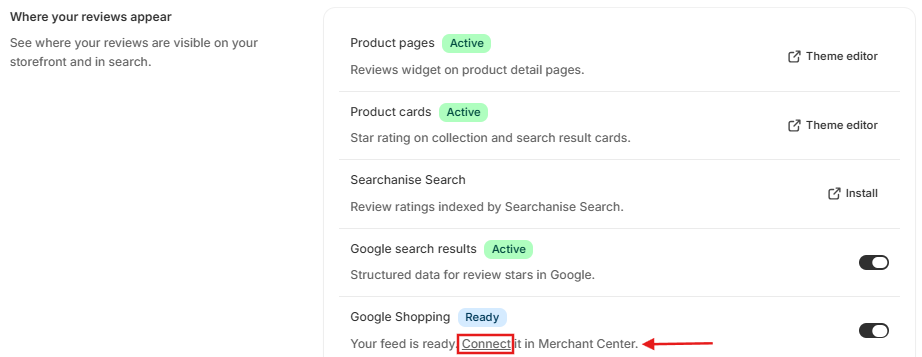
- In your Shopify admin, open Searchanise Reviews > Settings >Where your reviews appear section > Google Shopping.
- Turn on the toggle. The app starts building your feed. This can take a few minutes.
- When the feed is ready, you’ll see the feed link and the Copy link button.
You can start applying to the Product Ratings program while the feed is being built.
Step 2. Connect the feed in Merchant Center
Under the Google Shopping toggle, click the Connect link to open the instructions:
- Sign up for the Google Product Ratings program. Use the sign-up link in the app and wait for Google to approve your store.
- Add the feed link as a data source. Once your store is approved, click Copy link and add the link as a product reviews data source in Merchant Center. Choose the scheduled fetch method and set the frequency to daily. For details, see Google’s instructions.
- Check your domain. Make sure your store domain in Merchant Center matches the domain shown in this step.
Ratings usually start appearing 2 to 4 weeks after Google first processes your feed.
Feed statuses
The status next to the Google Shopping toggle shows what’s happening with your feed:
| Status | What it means |
|---|---|
| Off | The feed is turned off. |
| Preparing | The app is building your feed. This can take a few minutes. |
| Ready | The feed is ready, but Google hasn’t downloaded it yet. Connect it in Merchant Center. |
| On | Google is downloading your feed. |
| Update failed | The app couldn’t update your feed. It will try again automatically. Google still receives the previous version of the feed, if there is one. |
Below the feed link, you can also see when the feed was last updated, how many reviews it includes, and when Google last downloaded it.
How the feed is updated
The feed updates automatically once a day and after you import reviews. Changes to your reviews and products, such as new, approved, or deleted reviews, appear in the feed with the next daily update. Google then downloads the new version on its own schedule.
Which reviews are included
The feed includes published reviews with any rating, from 1 to 5 stars. To meet Google’s rules, it skips reviews that:
- have no text, or text shorter than 20 characters or three words;
- contain an email address, phone number, or link;
- belong to products that are deleted, hidden, or not available in your Online Store.
Your replies to reviews are not sent to Google.
Warnings
You may see these warnings in the Google Shopping row:
- Your storefront isn’t publicly available: remove the store password so Google can open your product pages.
- Google requires all your reviews, including low ratings: with the 4–5 stars only moderation setting, lower-rated reviews stay in Pending. Approve them so they reach Google. See Review moderation.
- Google needs at least 50 reviews: keep collecting reviews. See Collecting reviews with request emails.
- Products with no barcode or SKU: Google may not match reviews to these products. Click Download list and add barcodes or SKUs in Shopify.
- Turn off the Google feed in your previous reviews app: Google blocks feeds with duplicate reviews, so disconnect your old app’s feed.
Changing or turning off the feed
- Regenerate link creates a new feed link. The old link stops working, so update it in Merchant Center.
- Turning off the Google Shopping toggle deletes the feed, and Merchant Center will show errors until you remove the data source. If you turn the feed on again, the link stays the same.
