
You can use Shopify metafields to customize search behavior, create filters for products and product variants, and display metafield values in Searchanise widgets.
All metafields and metaobjects added to the app are available in the Searchanise Search & Filter control panel under Search & Navigation > Preferences > Metafields and Metaobjects.
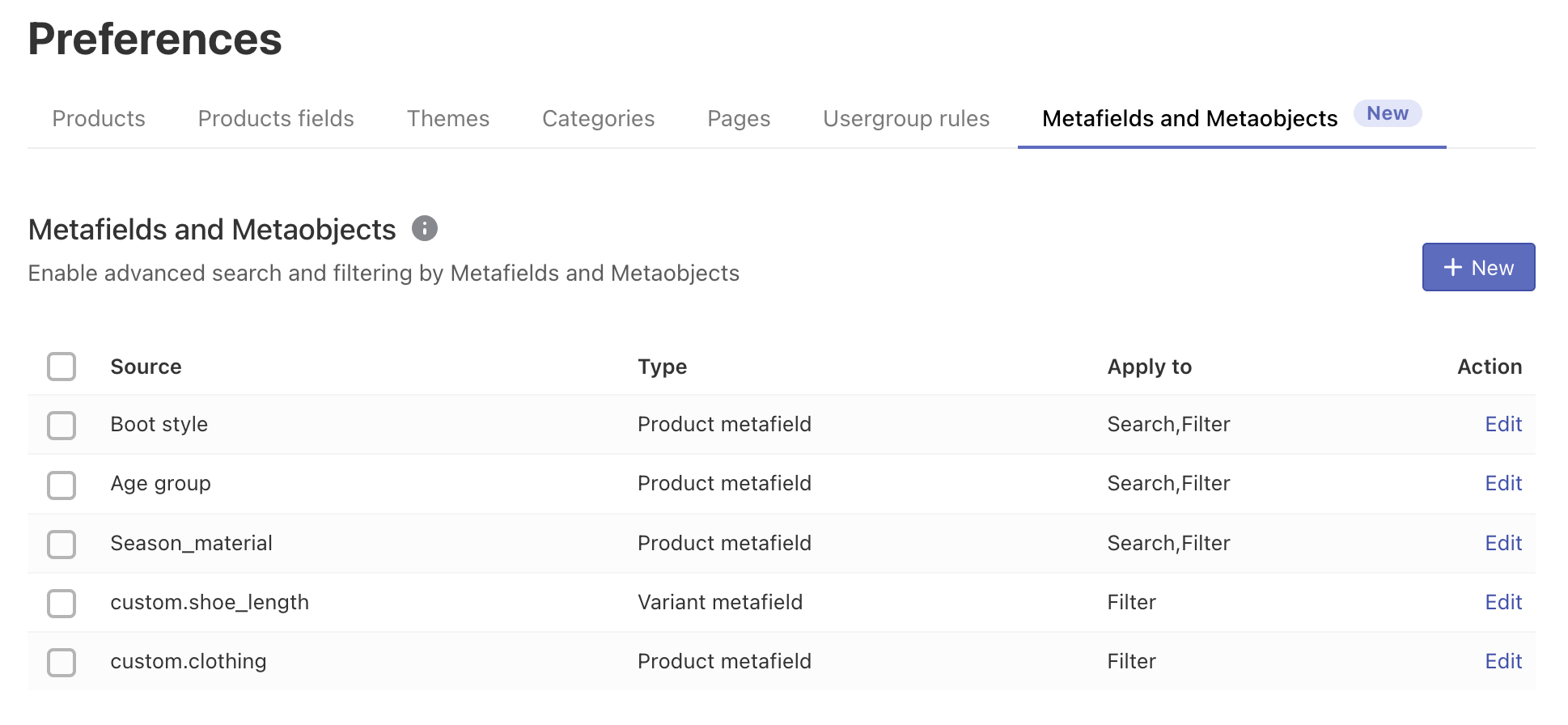
The app supports metafields based on metaobjects for both products and product variants, including category metafields.
Add a metafield to the app’s admin
- Go to the Searchanise Search & Filter control panel > Search & Navigation > Preferences section > Metafields and Metaobjects tab.
- Click + New.
- Select the product or variant metafield you want to add.
- Click Source and find the metafield you’d like to add to the app.
- If you can’t find the desired metafield in the drop-down list, click the Edit manually link under the field and type the metafield into the namespace.key format in the appeared text field.
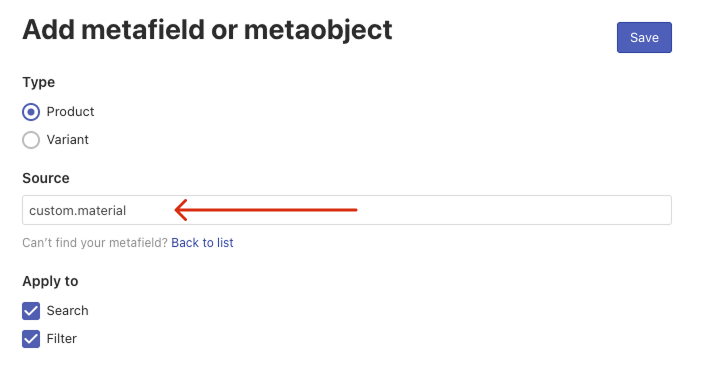
Metafields aren’t case-sensitive. Learn how to find and copy metafields in that format in Shopify here.
- In the Apply to section, select:
- Search if you want the added metafield to be searchable in the app’s widgets.
- Filter if you want to create a filter by metafield.
- Click Save.
- Click the link in the notification at the top or the Force re-indexation button on the left-hand side to start indexation.
After the indexation is complete,
- If you have set Apply to to
Search, the added metafield will appear in the Search & Navigation > Preferences section > Product fields tab. If the product field by the metafield is displayed and enabled, the app searches for it. What’s more, this setting adds the metafields as options to the Display additional product field setting in the Instant search widget (Search Results Widget) section > Content tab, so that you can display one of the metafields as an additional field in the product cards of these widgets. You can set the label for the field in the Translations & Texts section > Instant Search Widget (Search Results Widget) tab > Additional product field text box. - If you have set Apply to to
Filter, the added metafield will appear in the Filters > Filter list section> Filters tab. By default, filters are displayed in thenamespace.keyformat. You can rename them. For metafields based on metaobjects, filter values use only metaobject fields with a Display name property.
Edit a metafield
- Go to the Searchanise Search & Filter control panel > Search & Navigation > Preferences section > Metafields and Metaobjects tab.
- Click Edit next to the metafield you’d like to change.
- Change the metafield and save the changes.
- Click the link in the notification at the top or the Force re-indexation button on the left-hand side to start indexation.
Delete metafields
- Go to the Searchanise Search & Filter control panel > Search & Navigation > Preferences section > Metafields and Metaobjects tab.
- Check the metafields you’d like to delete.
- Click Delete.
- Confirm the action.
- Click the link in the notification at the top or the Force re-indexation button on the left-hand side to start indexation.
Enjoying your experience with Searchanise?
We’d appreciate it if you could take some time to leave a review.
