
You can change the sorting of Filters as well as the sorting of their values.
Change the sorting of Filters on the search results page
To change the current sorting of Filters on the search results page, use the search filter tree and follow these steps:
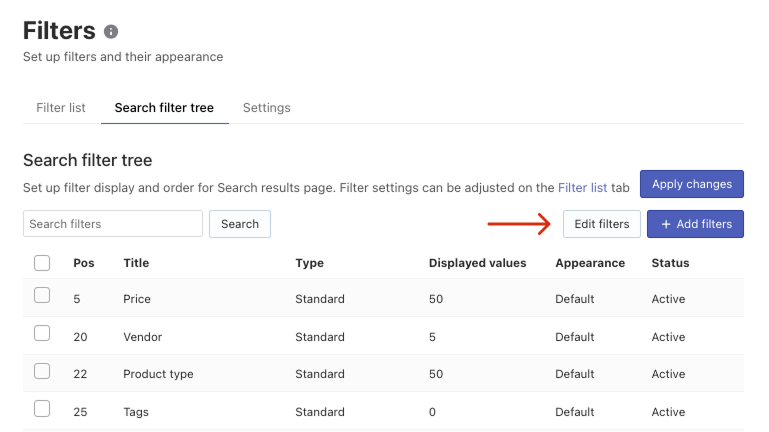
- Go to the Filters section > Search filter tree tab.
- Click Edit filters in the top-right corner.
- Set the order of the filters in the Pos. field.
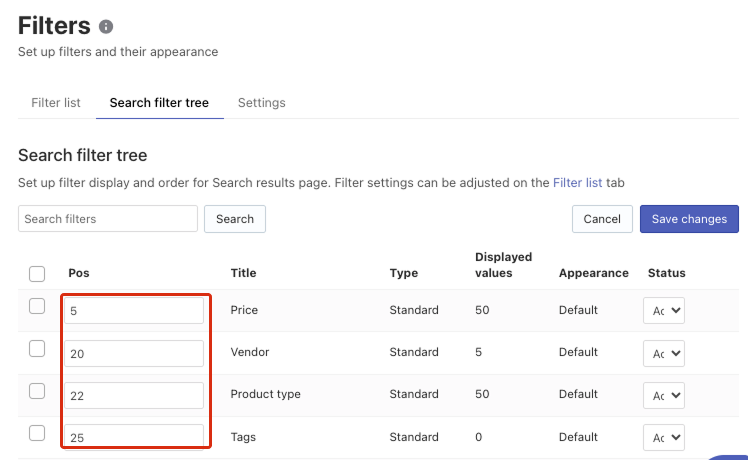
- Save the changes.
That’s it. Your filters will be sorted on the storefront according to the order you’ve just set up.
Change the sorting of Filters on collection pages
To change the current sorting of Filters on collection pages, use collection filter trees and follow these steps:
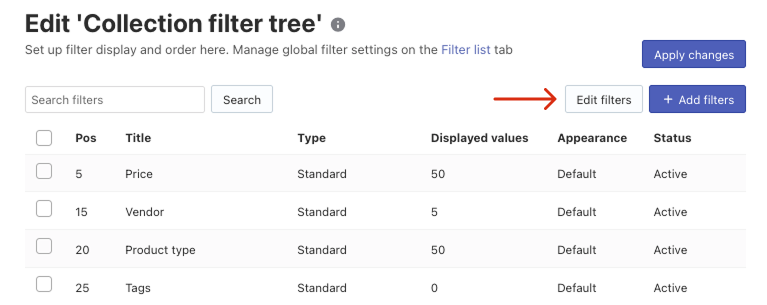
- Go to the Filters > Filters on collections section > Collection filter trees tab.
- Click the pencil icon next to the Filter tree, the sort of which you want to change.
- Click Edit filters in the top-right corner.
- Set the order of the filters in the Pos. field.
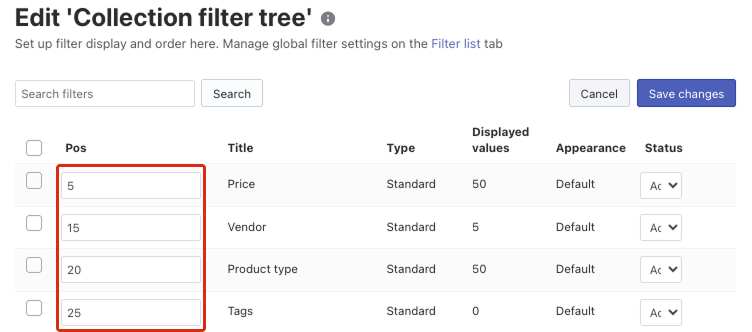
- Save the changes.
That’s it. Your filters will be sorted on the storefront according to the order you’ve just set up.
Change the sorting of filter values
You can set the default sorting for all filters’ values and then set the sorting differently from the default one for the particular filter values. For example, you can select sorting by name in ascending order for all your filters’ values, and only for the “Tags” filter values, set the sorting by the number of products.
You can also set various sorts for different filters’ values.
Change the default sorting for all filters’ values
By default, all filters’ values are sorted by their names in ascending order. You can change the default sorting. To do so, follow these steps:
- Go to the Filters section > Settings tab.
- Select the option in the Default sorting setting:
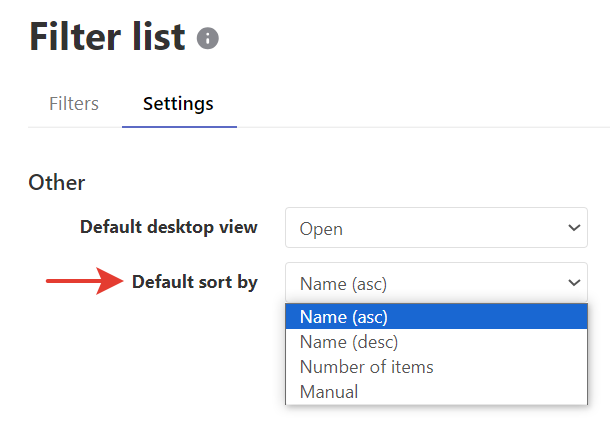
- Name (asc) – sorting by name in ascending order (if a display name is set, then it is considered a name)
- Name (desc) – sorting by name in descending order
- Number of items – sorting by the number of products in descending order
- Manual – the sorting according to the order set in the Position column in the list of filter values. The Position column is shown if the Manual sorting is set.
- If you selected the manual sorting, adjust the order of the filters’ values as you would like. See the instructions here.
- Apply the changes.
That’s it. All filters’ values that have the default sorting will be sorted by the selected way.
Change the sorting of the particular filter values
To change the sorting of the specific filter values, follow these steps:
- Go to the Filters section > Filter list tab.
- Click the pencil icon in the filter row whose values you want to change the sorting.
- Go to the Settings tab.
- Select the option in the Sort by setting:
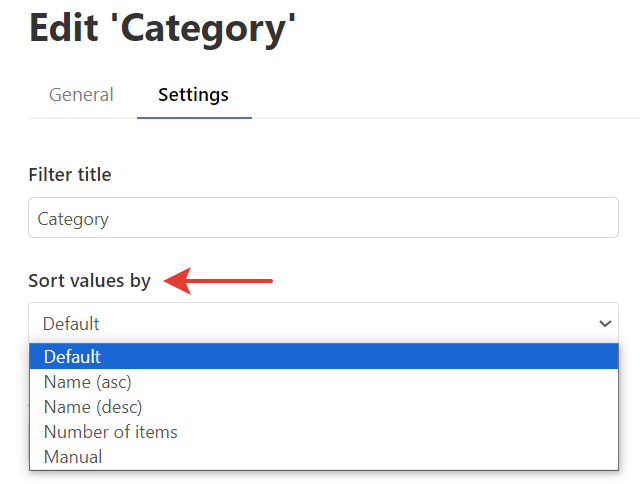
- Default – the default sorting that is set for all filters’ values
- Name (asc) – sorting by names in ascending order (if a display name is set, then it is considered a name)
- Name (desc) – sorting by names in descending order
- Number of items – sorting by the number of products in descending order
- Manual – the sorting according to the order set in the Position column in the list of filter values. The Position column is shown if the Manual sorting is set.
- If you selected the manual sorting, adjust the order of filter values as you would like in the General tab. See the third step of the instructions here.
- Apply the changes.
That’s it. These filter values will be sorted by the selected way.
Adjust the manual sorting of the filter values
To adjust the manual sorting of the filter values, follow these steps:
- Go to the Filters section > Filter list tab.
- Click the pencil icon in the filter row whose values you want to change the sorting.
- Click the Edit values button in the top-right corner.
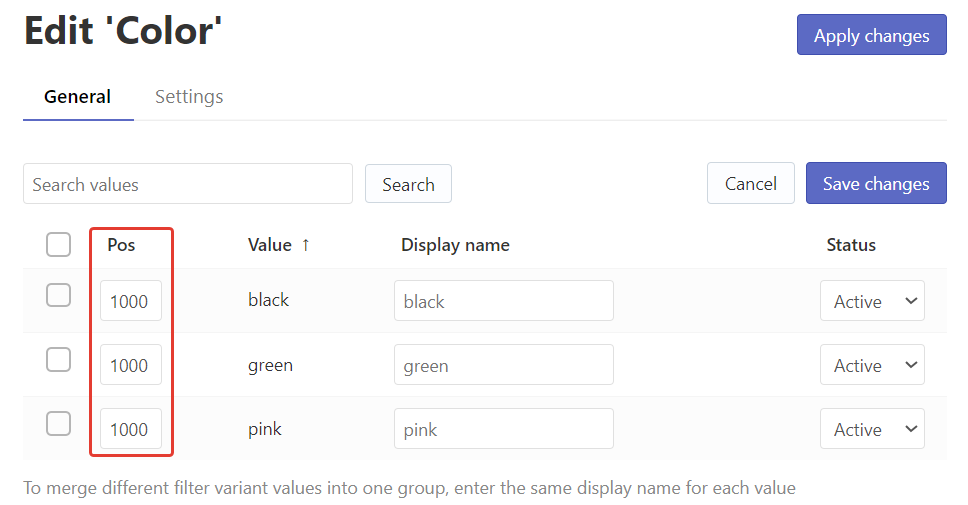
- Set the order of the filter values in the Position column.
 Note
NoteThe Position column is shown if the Manual sorting is set for the filter values.
- Save the changes.
That’s it. The filter values will be sorted on the storefront according to the order you’ve just set up.
