
This article is general for Shopify, BigCommerce, Wix, WooCommerce, Magento 1, Magento 2, and CS-Cart.
Searchanise allows you to customize the design of your widgets directly in the admin panel. For advanced styling, you can also use Custom HTML and CSS.
This article explains:
- What design settings you can change, and where to find them in the admin panel
- What can be customized using Custom HTML and CSS
- What changes require assistance from Support
The customization options described below apply to:
- Instant Search Widget
- Search Results Widget
- Recommendations Widget
1. Basic appearance settings in the admin panel
Instant Search Widget
The Instant Search Widget displays product suggestions while customers type in the search field.
Settings Location: Search & Navigation > Instant search widget section
Template & Style
Settings Location: the Template & Style tab
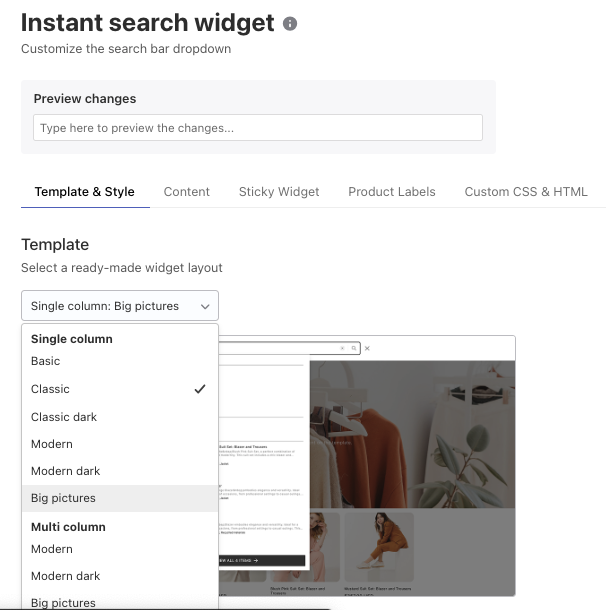
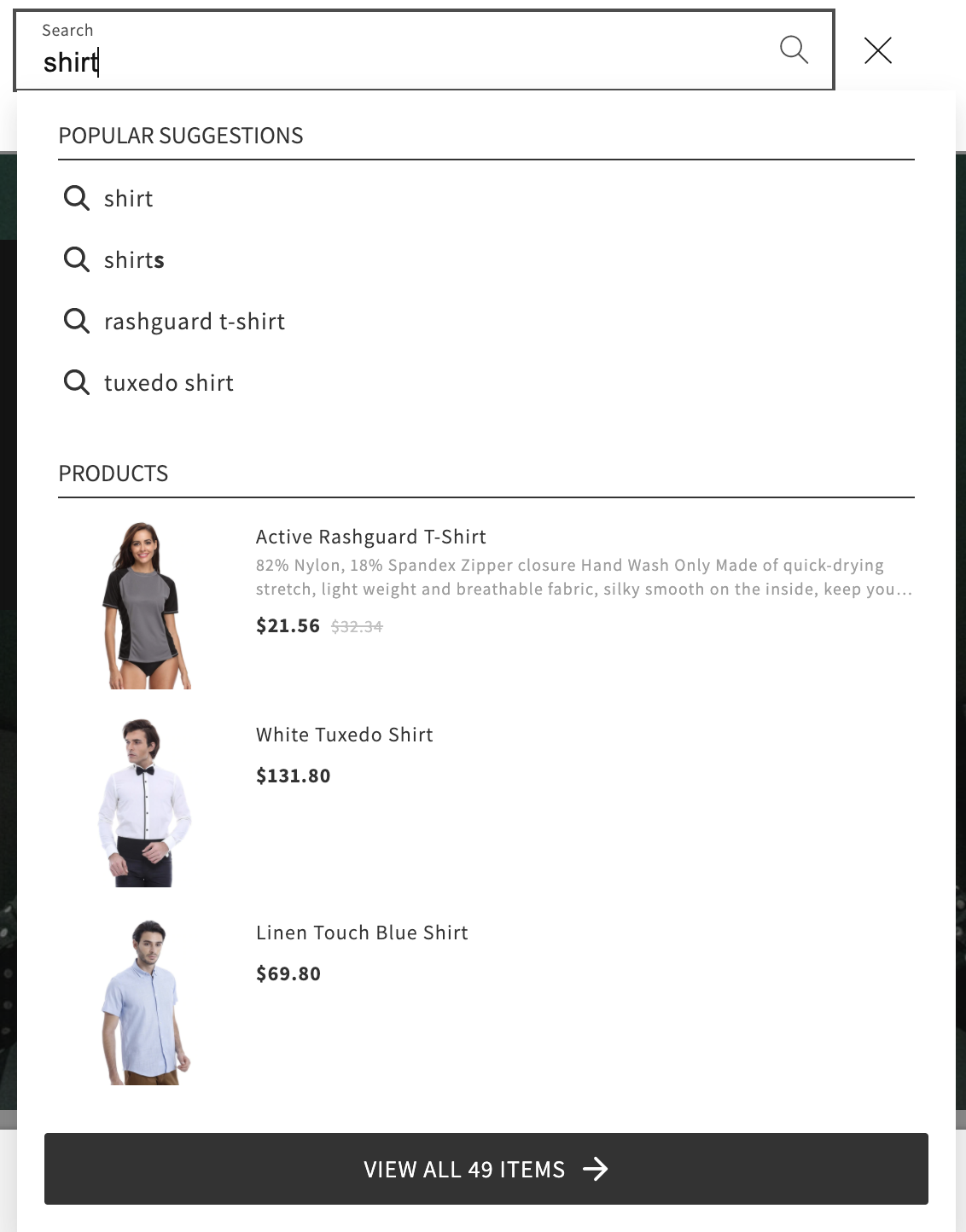
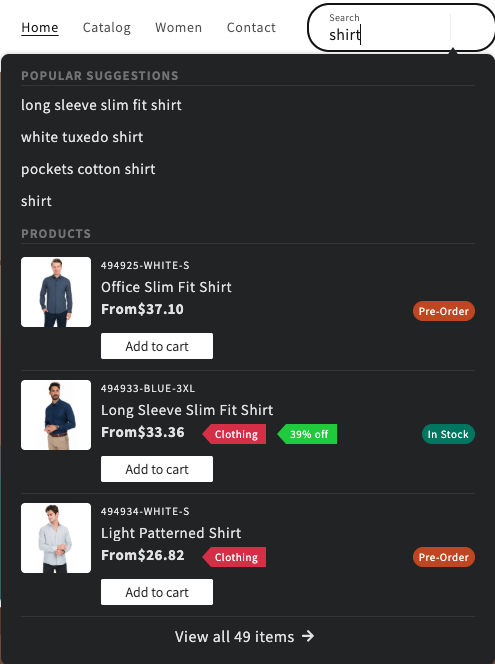
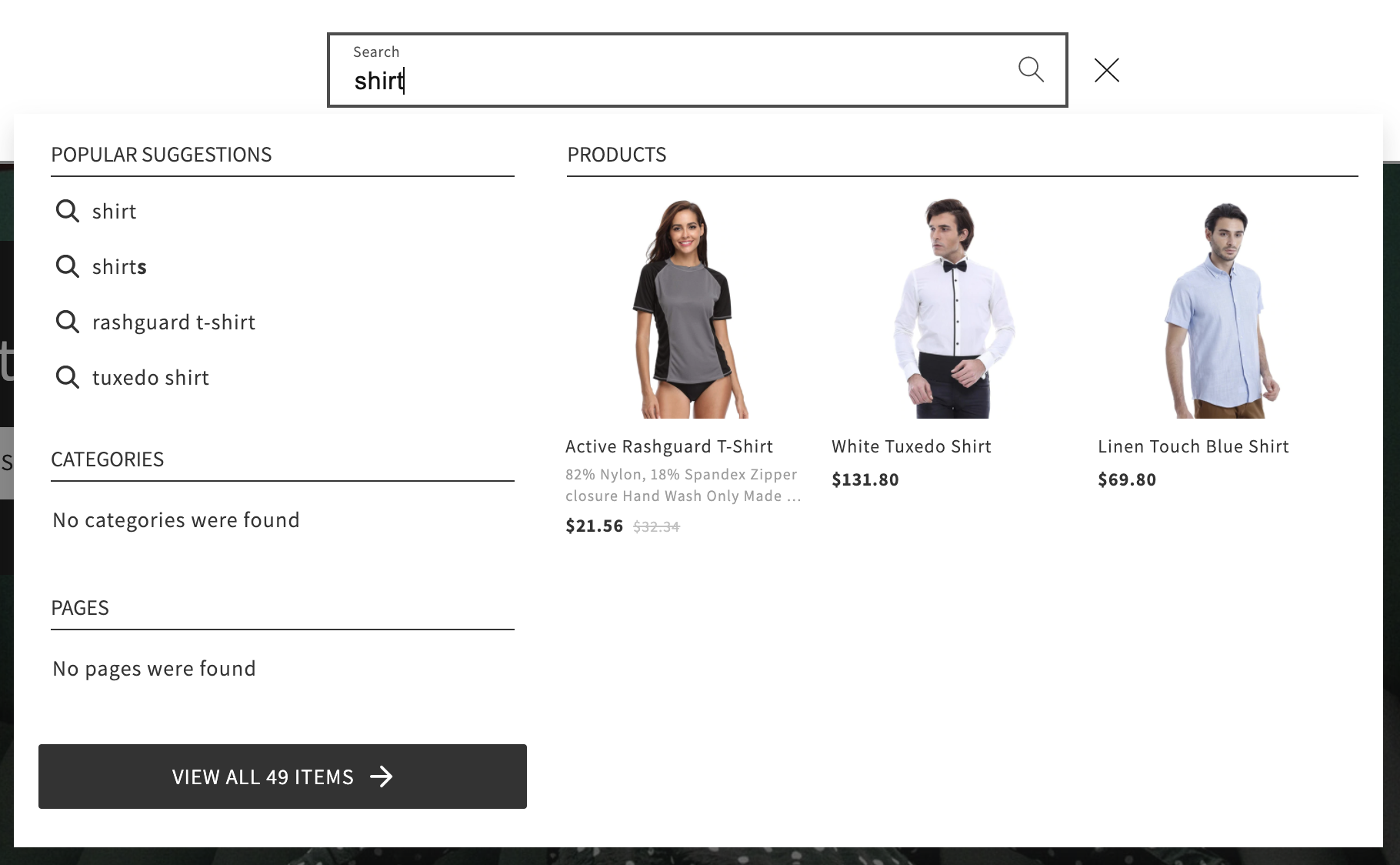
You can select a widget template: single-column or multi-column, light or dark layout.
Single Column light template
Single Column dark template
Multi-Column light template
After choosing the layout, you can customize the widget colors. For a complete list of available color settings, refer to the corresponding instructions.
You can also change the widget’s font family. By default, the widget inherits the font from your theme.
If you need to adjust additional typography settings — such as font weight, font size, text transformation, or line height — you can apply these changes using Custom CSS or contact our Support team for assistance.
Content
Settings Location: the Content tab
You can configure:
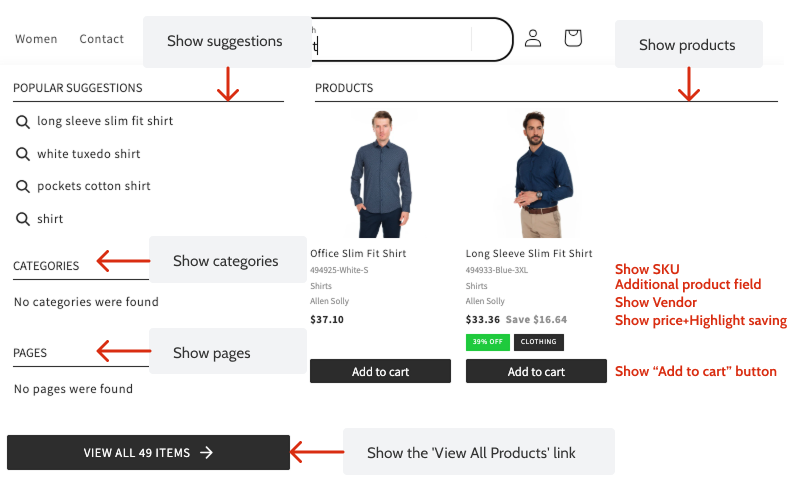
- Hide products or set the number of products displayed
- Show/hide price
- Show/hide original price compared to the discounted one and its position
- Show/hide product SKU
- Show/hide product vendor (Shopify only)
- Show/hide the Add to card button
- Show/hide additional product field (e.g., tags or metafield for Shopify)
- Show/hide suggestions, what suggestions to show, or how to show them
- Hide categories or set the number of categories displayed
- Hide pages (blog posts) or set the number of pages displayed
- Change the order of widget blocks (suggestions, products, categories, pages)
For detailed instructions, refer to the corresponding article.
If you need to edit widget text or add translations, go to the Searchanise admin panel > Translations & Texts section > Instant Search Widget tab. Here you can modify the labels and messages displayed in the widget.
Product Labels
Settings Location: the Product labels tab
You can control how product labels are displayed — such as Discount, In stock / Out of stock, and custom labels based on tags or custom fields (available for Shopify and BigCommerce).
You can customize:
- Label text — edit the wording to match your store’s terminology or translate it into another language
- Label colors — adjust background and text colors to match your storefront design
- Label visibility — control which labels are shown in product cards
Custom labels can be created using Shopify product tags or BigCommerce custom fields, allowing you to highlight specific product attributes such as New arrivals, Bestsellers, and Special offers
Sticky widget
Settings Location: the Sticky widget tab
The Sticky Widget appears by default if your store doesn’t have a search bar. It is displayed as a magnifying glass icon fixed in one position on the page. You can customise its look and feel. See Adjusting Sticky Widget.
Search Results Widget
The Search Results Widget is a search results page with filters.
Settings Location: Search & Navigation > Search Results widget section
Template & Style
Settings Location: the Template & Style tab
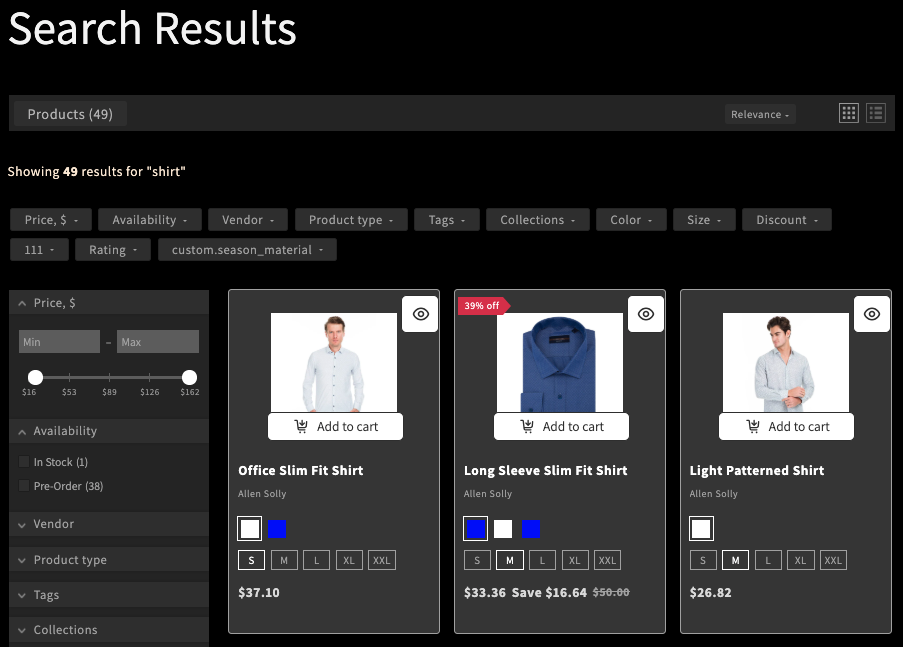
You can select a widget template: either the light one or the dark one.
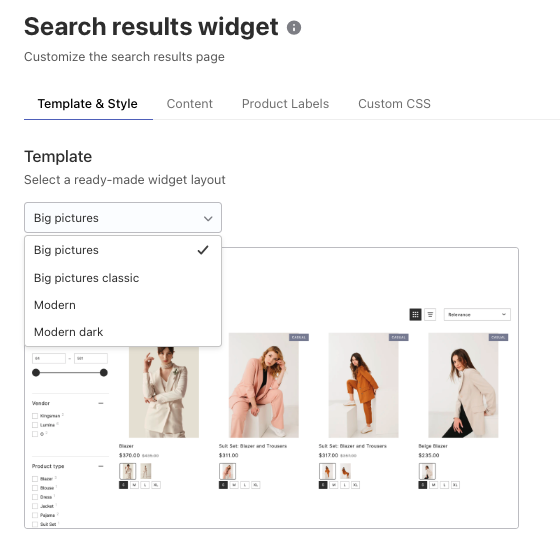
Light template (Big pictures)
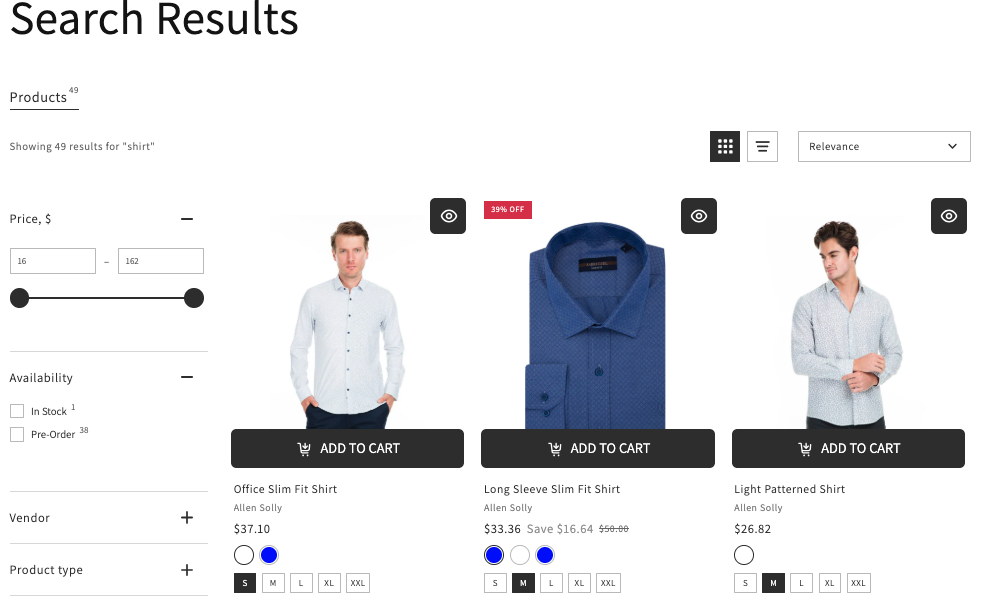
Dark template (Modern dark)
After choosing the layout, you can customize the widget colors. For a complete list of available color settings, refer to the corresponding instructions.
You can also change the widget’s font family. By default, the widget inherits the font from your theme.
If you need to adjust additional typography settings — such as font weight, font size, text transformation, or line height — you can apply these changes using Custom CSS or contact our Support team for assistance.
Content
Settings Location: the Content tab
You can customize the Search Results Widget to control:
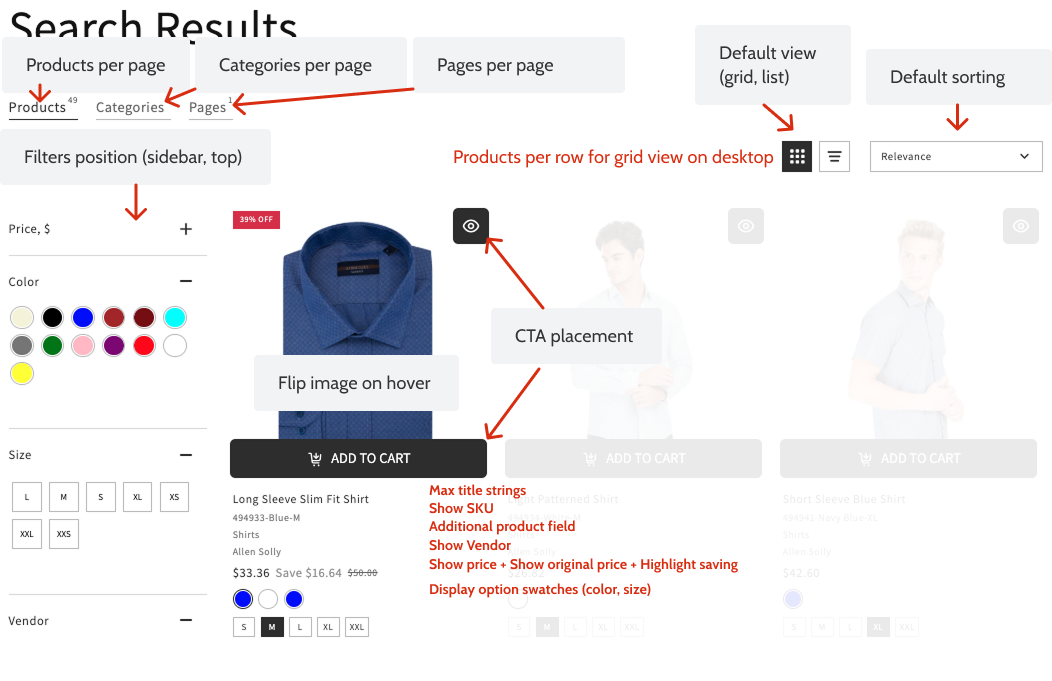
- Layout and navigation (filter position, sticky filters, infinite scrolling, products per page, grid or list view, products per row, and default sorting)
- Product display (price, original price, SKU, vendor, additional fields, and image hover effects)
- Product options and swatches (display option swatches for colors and sizes) (Shopify and BigCommerce only)
-
- CTA buttons (such as Add to cart, View product, or Quick View), and their placement
- Text limits for titles and descriptions
- Category or page visibility, and images.
For detailed instructions, refer to the corresponding article.
If you need to edit widget text or add translations, go to the Searchanise admin panel > Translations & Texts section > Search Results Widget tab. Here you can modify the labels, buttons, and messages displayed in the widget.
Product Labels
Settings Location: the Product labels tab
You can control how product labels are displayed — such as Discount, In stock / Out of stock, and custom labels based on tags or custom fields (available for Shopify and BigCommerce).
You can customize:
- Label text — edit the wording to match your store’s terminology or translate it into another language
- Label colors — adjust background and text colors to match your storefront design
- Label visibility — control which labels are shown in product cards
- Label position for custom labels – control where to place
Custom labels can be created using Shopify product tags or BigCommerce custom fields, allowing you to highlight specific product attributes such as New arrivals, Bestsellers, and Special offers
Filters
The Search Results widget contains filters. There are default filters for the most common attributes, such as price, vendor (brand, manufacturer), product type, availability, collection (category), etc. You can adjust them or add new ones.
Searchanise allows you to customize how filters appear and behave on the search results page. You can adjust both the layout and the functionality of filters to make navigation easier for your customers.
Settings Location: Filters > Filter list section.
You can customize filter behavior and appearance:
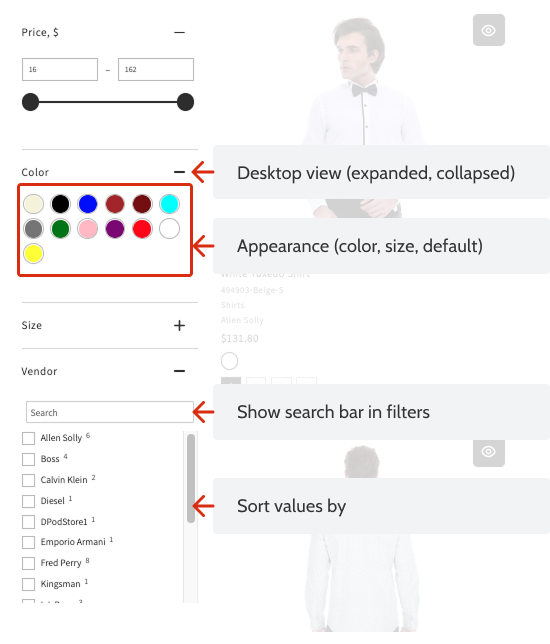
- Set the default filter state on the desktop (collapsed or expanded).
- Control the number, order, and searchability of filter options.
- Choose how multiple selections are applied using AND or OR logic.
- Display color and size filters visually.
- Use sliders for numeric filters, like price or weight.
Recommendations
The Recommendations widget displays related or recommended products.
Example:
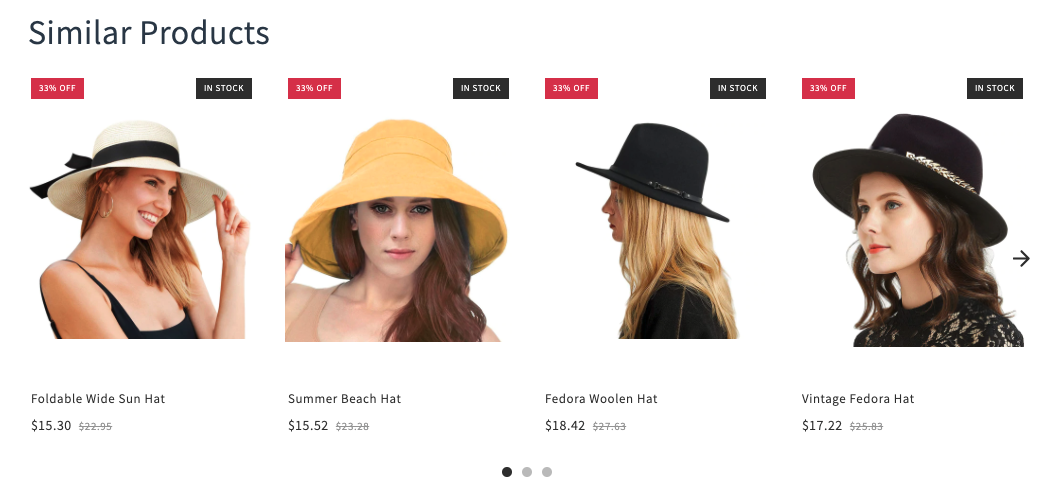
The Recommendations Widget is available on the following platforms:
- Shopify
- BigCommerce
- WooCommerce
- Magento 1
Settings location: Merchandising & Promo > Recommendations section > Settings tab
You can control whether product cards in the Recommendations widget display a CTA button (such as Add to cart, View product, or Quick View) or hide it.
For stores on Shopify and BigCommerce, you can also enable option swatches to display product options like colors and sizes visually instead of as text.
2. Advanced customization using Custom HTML & CSS
If the built-in settings are insufficient, you can modify the widget appearance using Custom HTML (Instant Search Widget) and CSS (all widgets).
You can implement these changes yourself — see how to modify the Searchanise widgets’ appearance for step-by-step guidance — or contact our Support team for assistance.
3. Customizations performed by support
Some changes are not exposed in the admin panel and require assistance from the Searchanise Support team.
Examples include:
- Deep structural modifications
- Complex layout redesign
- Custom JavaScript-based interactions
Theme conflict resolution
If you need assistance, provide:
- Store URL
- Screenshots of the desired layout
- Clear description of expected behavior
- Device type (desktop/mobile)
4. Best Practice
- Configure all available settings first.
- Test changes on both desktop and mobile.
- Use Custom CSS for styling adjustments.
- Contact Support for more advanced modifications.
