
On September 3, 2026, we updated Searchanise for Wix to expand functionality and ensure compatibility with the Wix Harmony Editor.
If you installed Searchanise before this date, you can click Update app in your Wix dashboard:
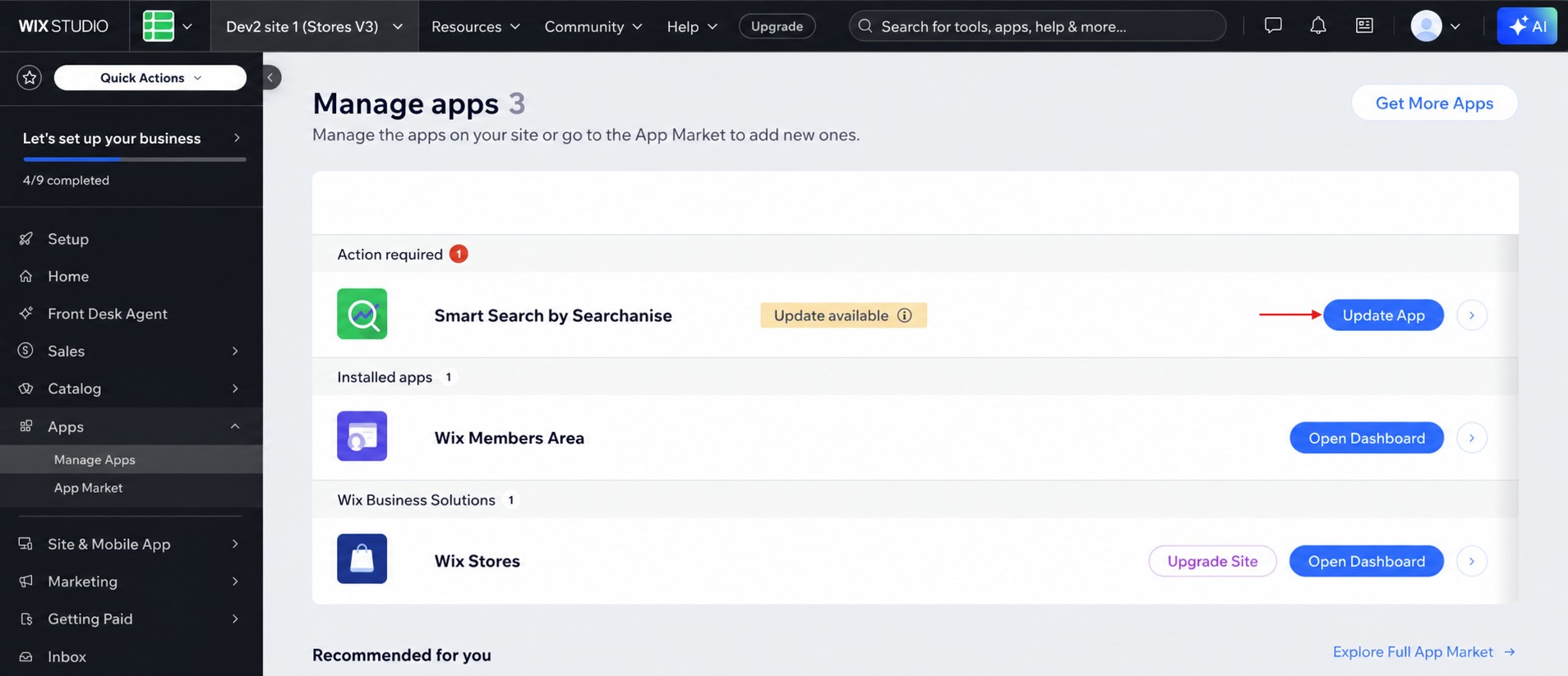
Whether or not you update, Searchanise will keep working on your storefront as before — your current setup won’t change automatically.
If you have a paid subscription, do not reinstall the app, as this will cancel your subscription. Click Update app to get the new options instead.
Now, you can show search results either in a popup or on a separate page. Both options provide the same search functionality; the difference is how visitors view the results.
- Show results in a popup: Results appear below the Search bar on the page the visitor is currently viewing.
- Show results on a separate page: After entering a query, visitors are taken to a dedicated Search results page with its own URL. Visitors can also open, bookmark, or share the page URL.
Follow the instructions below based on how you want to use Searchanise on your storefront.
Keep your current widget setup
No action is required. Your existing widget will continue to work on your storefront.
If you update the app:
- the legacy Search bar input will continue working on your storefront;
- its setting in the Editor will not be available.
Add the new Search bar to customize it (see the options below).
Update the search bar and show results in a popup
- Update Searchanise in the Wix dashboard.
- Delete the existing Searchanise search bar in the Editor.
- In the Editor, go to Add elements > App widgets > Search bar.
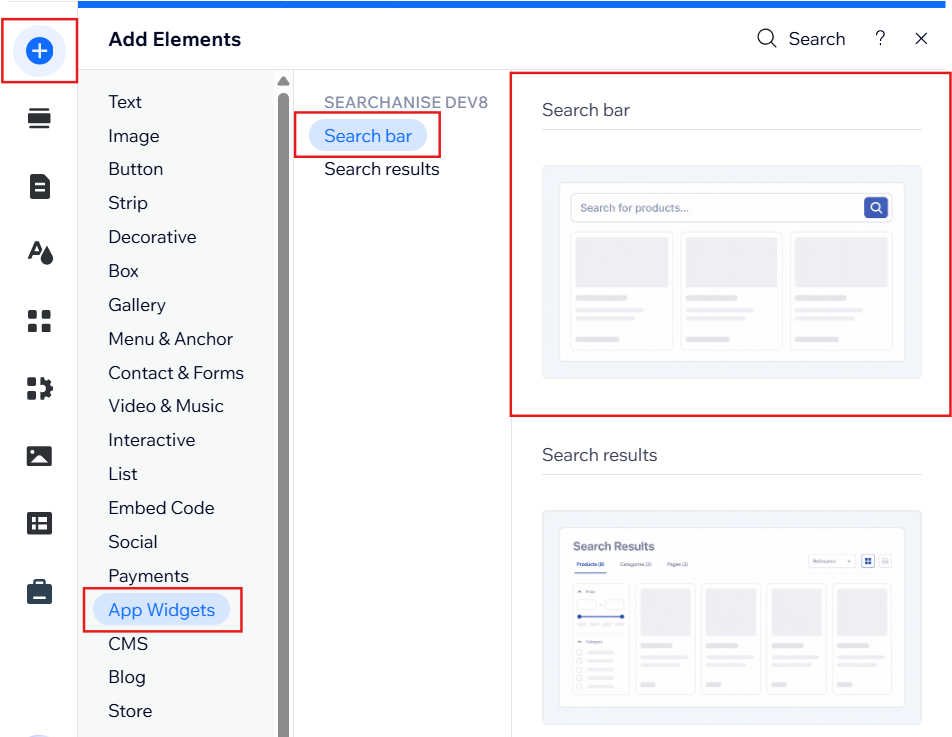
- In the Editor, open the bar’s settings and turn on Show results in popup.
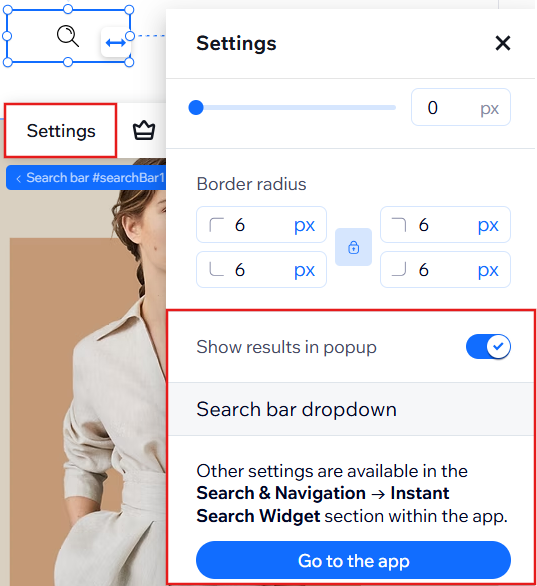
- Configure the search bar style in its Editor settings. To configure the dropdown style and other settings, go to the app’s admin panel.
- Publish the changes.
Update the Search bar and add a separate search results page
- Update the app in the Wix dashboard.
- Delete the existing Searchanise search bar in the Editor.
- In the Editor, go to Add elements > App widgets > Search bar.
- If you already have a search results page, copy its URL and paste it in the search bar settings (in Search results page URL):
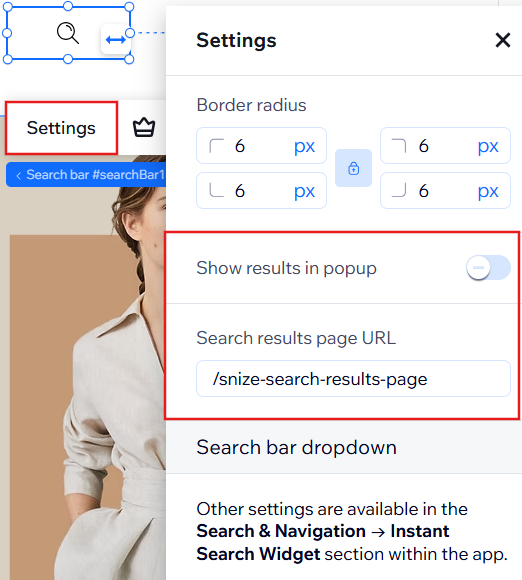
- In the Editor, go to Add elements > App widgets > Search results.
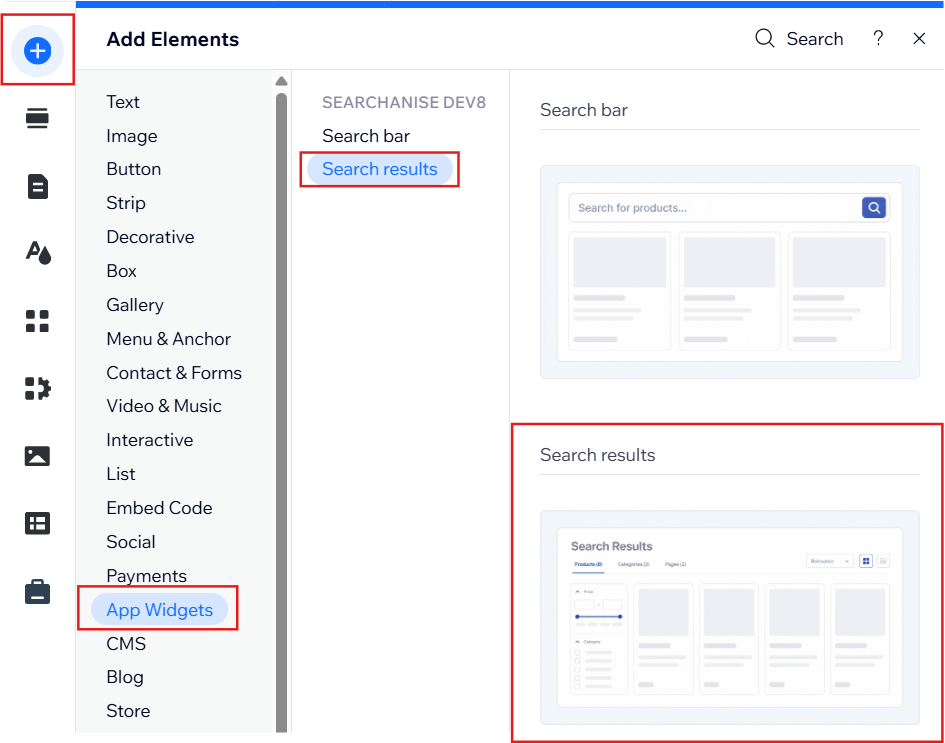
- Publish the changes.
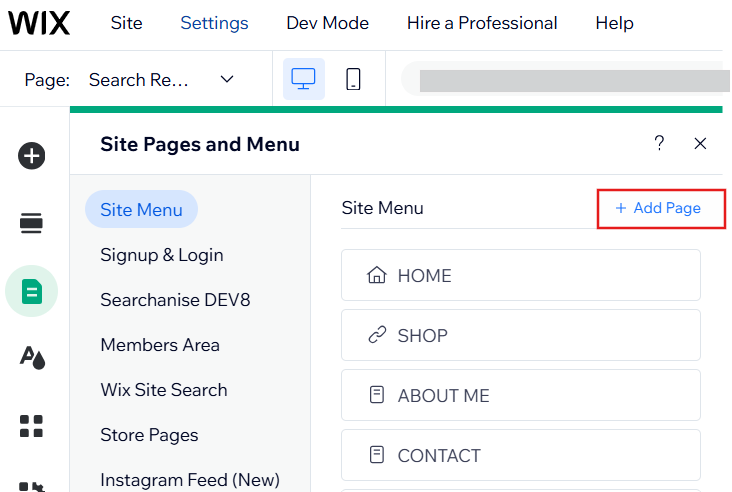
If you do not have a Search results page, create it:
- Go to Add page > Blank page.
- In Page info, enter Search results as the page name and enable Hide from menu.
- Open SEO basics and set the URL to
snize-search-results-page.
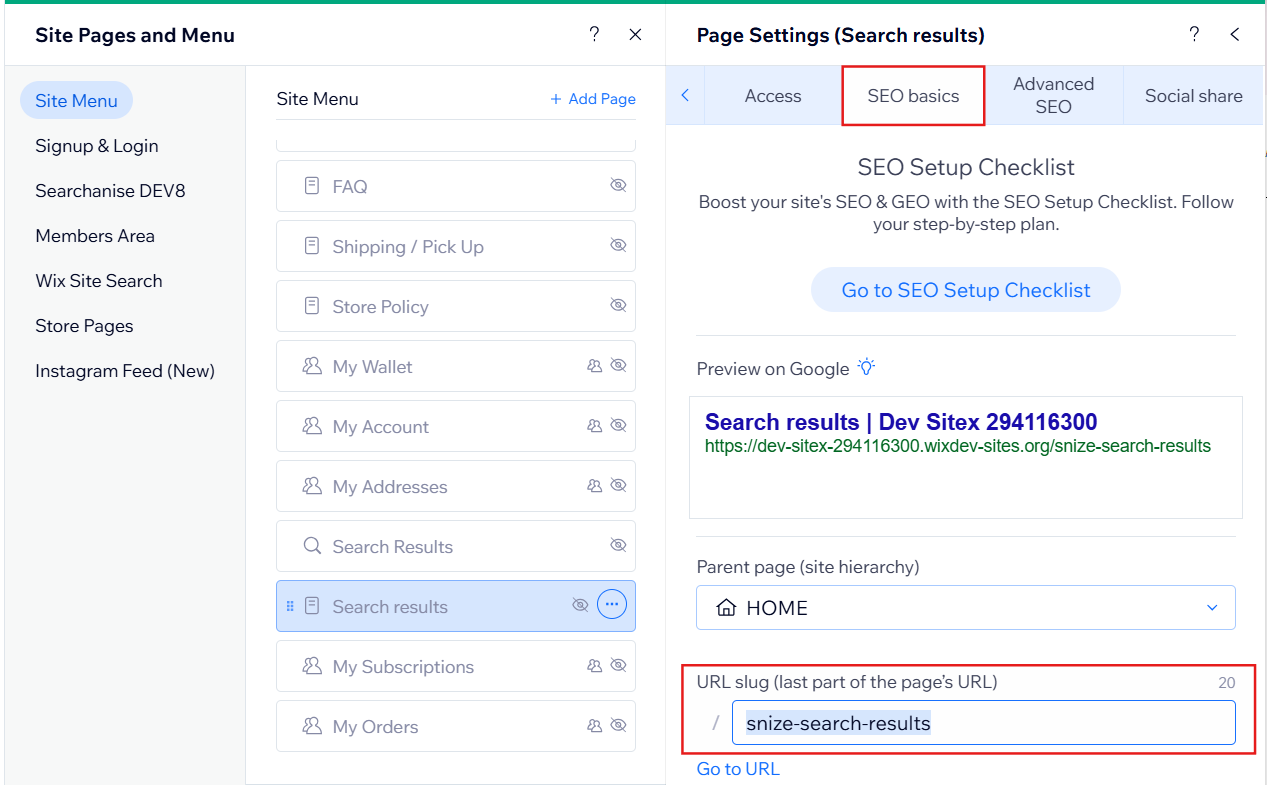
snize-search-results-pageis the default URL in the Search bar settings. You can also use a different URL. - Paste the Search results page URL in the Search bar settings (see step 4 above).
- Publish the changes.
After the update, you will find:
- Search bar settings in the Wix Editor and search dropdown settings in the Searchanise admin panel.
- Search results widget settings in the Searchanise admin panel.
